







Turn your Fire TV into an extension of your iPhone or iPad. Whether you’re watching videos, browsing social media, or showcasing work presentations, our app makes wireless mirroring quick and simple.

Open iPhone/ iPad camera and scan now

app downloads

and regions supported

Satisfied Customers

Customer Service
Unlock the full potential of your Fire TV by mirroring your iPhone or iPad screen wirelessly. Whether you want to enjoy videos, show off your latest photos, or demonstrate an app, this screen mirroring app provides a fast, simple, and high-performance casting experience.
Forget about HDMI cables or third-party adapters—our app works over Wi-Fi to instantly connect your iPhone or iPad to your TV. It supports smooth video playback, real-time screen sharing, and crystal-clear image quality, making it perfect for entertainment, work, and education. Compatible with any Android TV brand, including Sony, Xiaomi, Hisense, Philips, and more.
Experience the freedom of a wireless connection and take your iOS content to the big screen today!
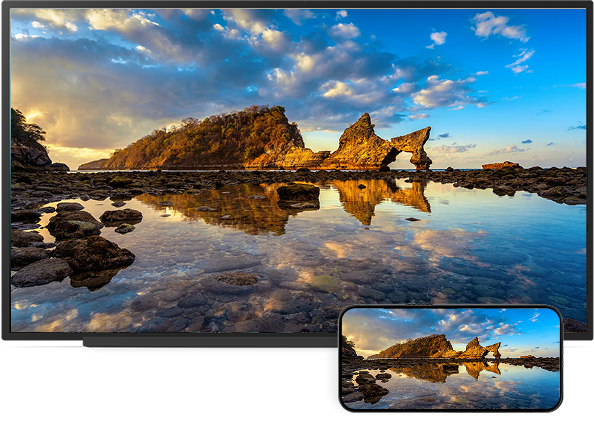

Just connect to Wi-Fi and start mirroring in seconds.

Stream YouTube, Netflix, and more without interruptions.

Adjust settings easily for the best viewing experience.

Ideal for gaming, meetings, and home entertainment.
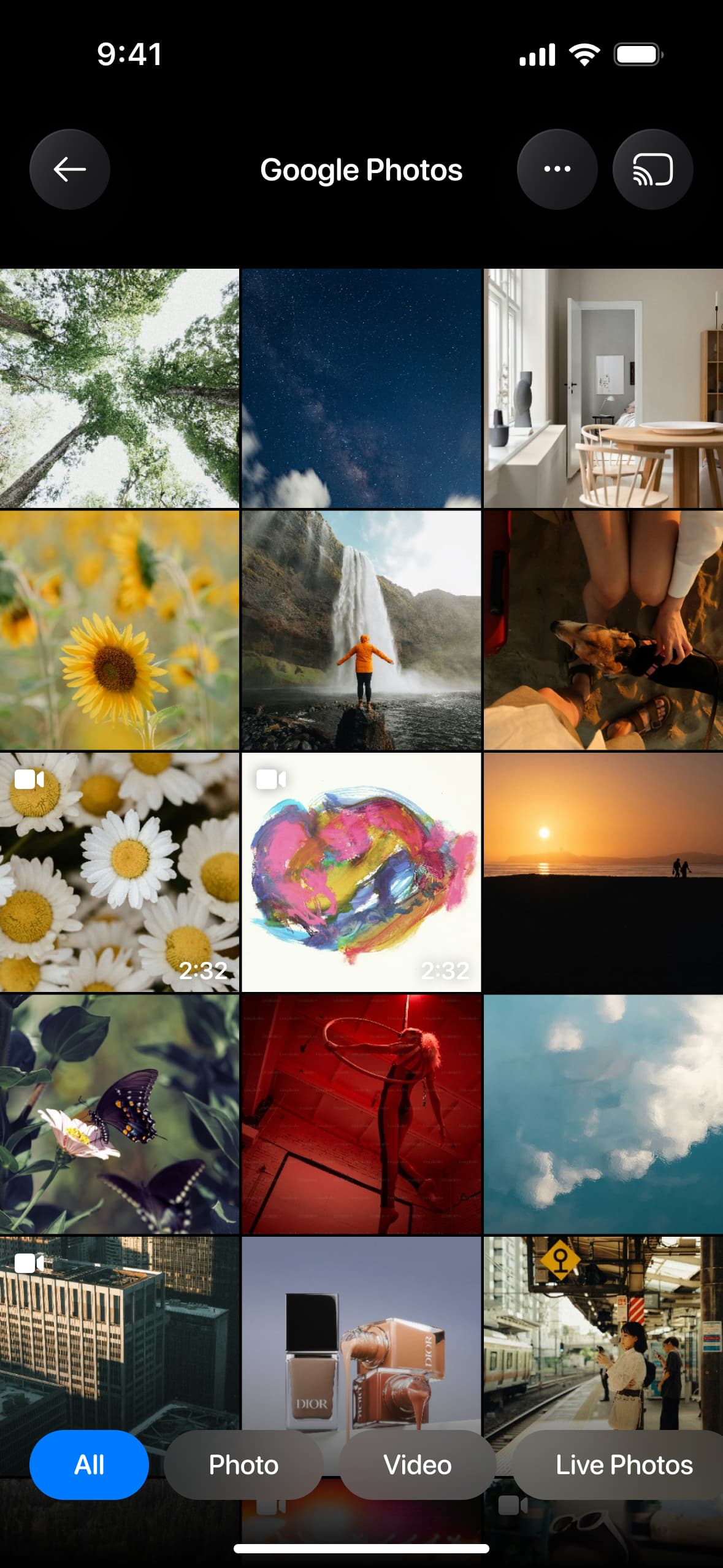
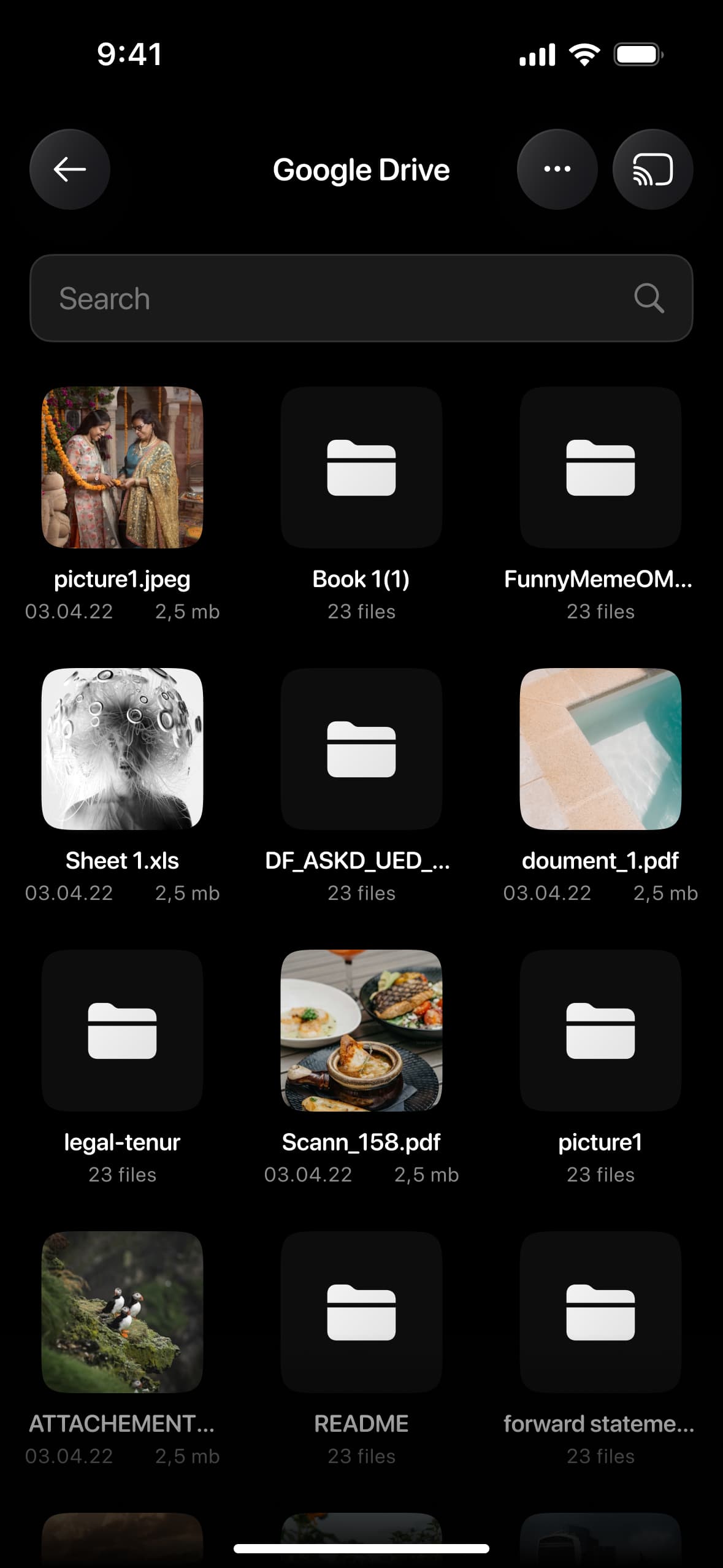
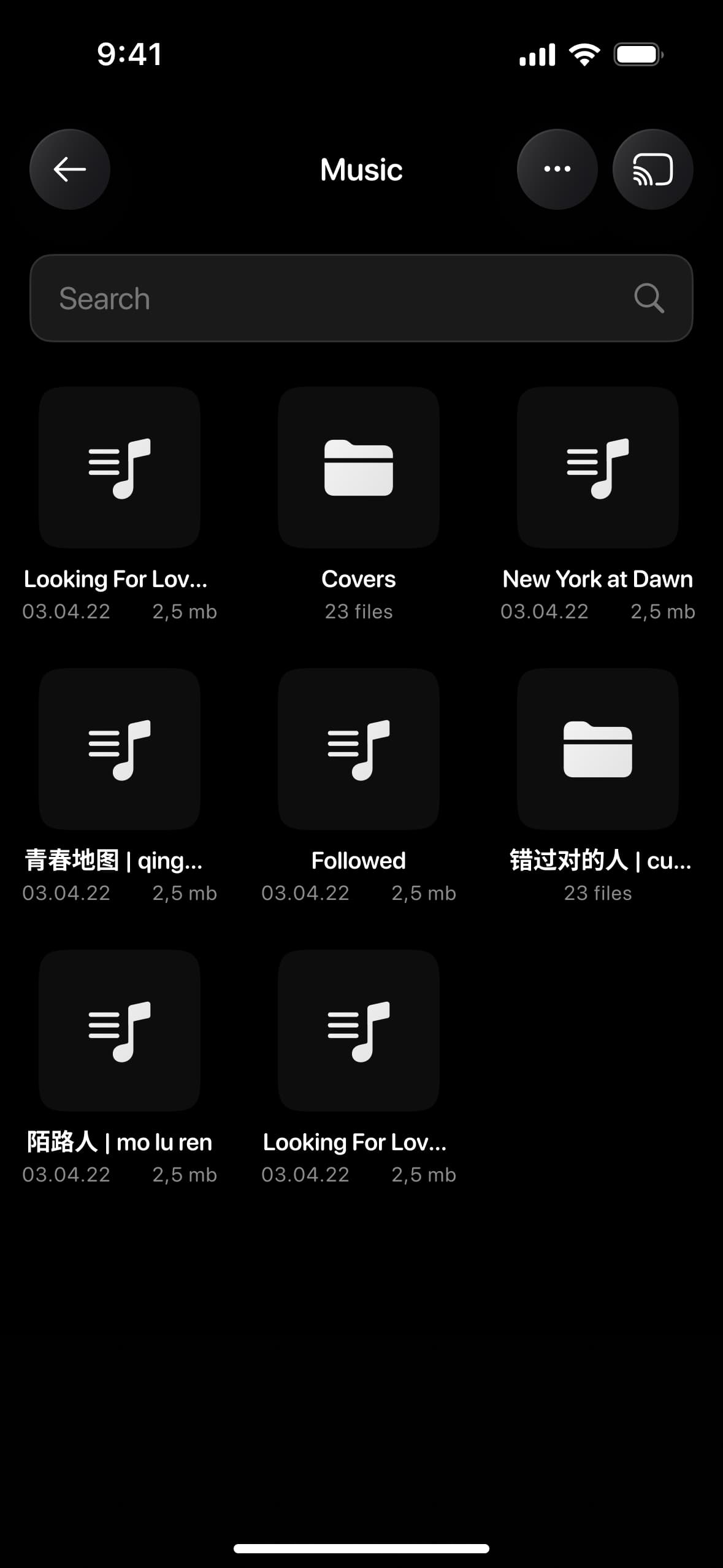
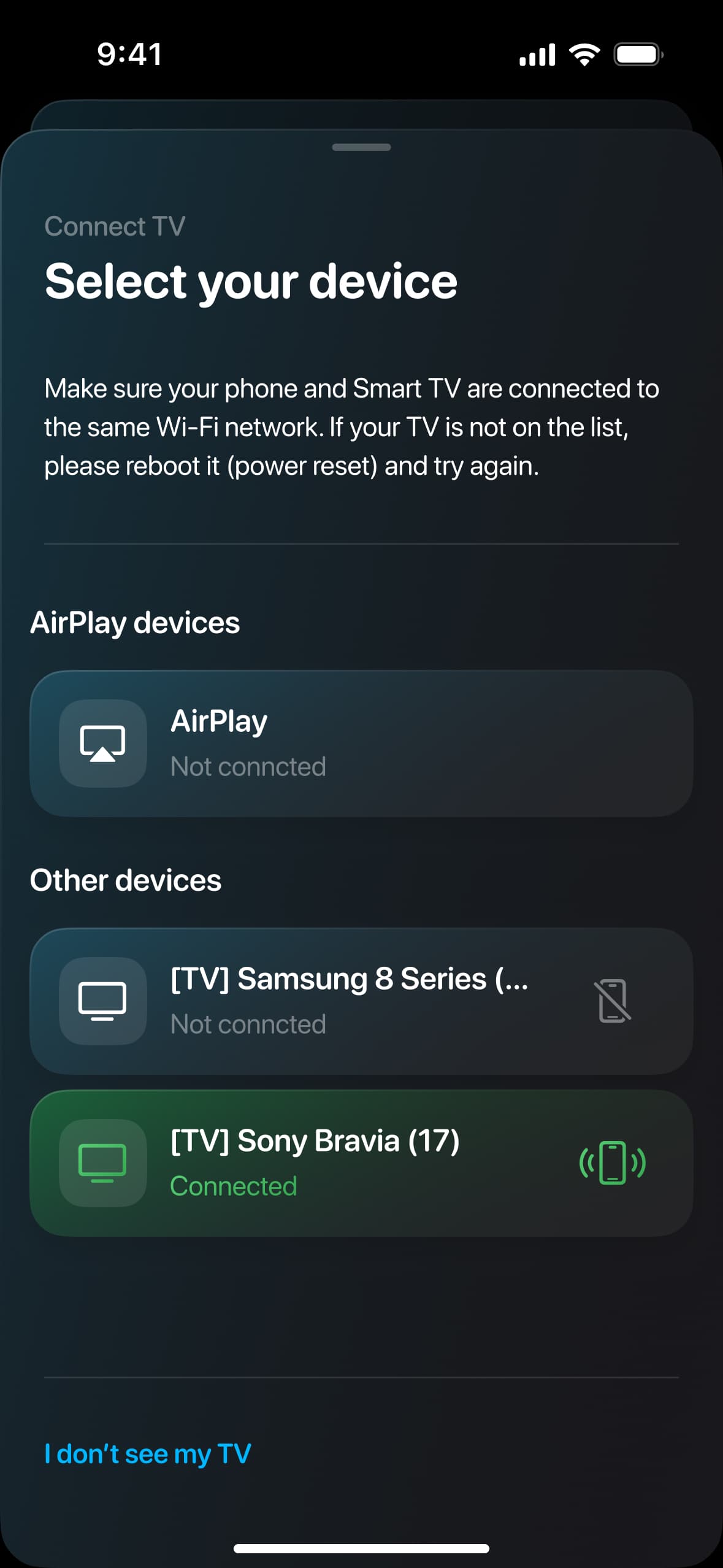
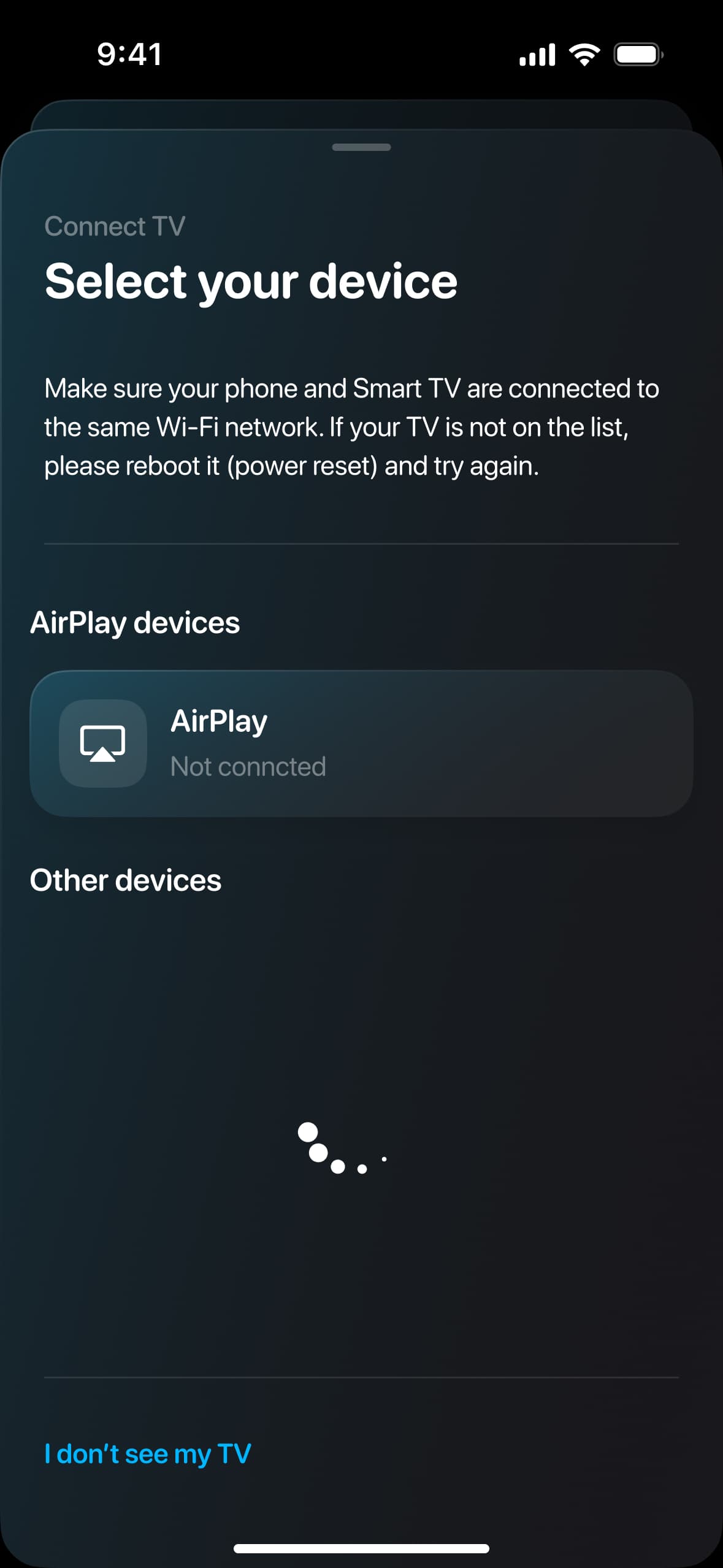
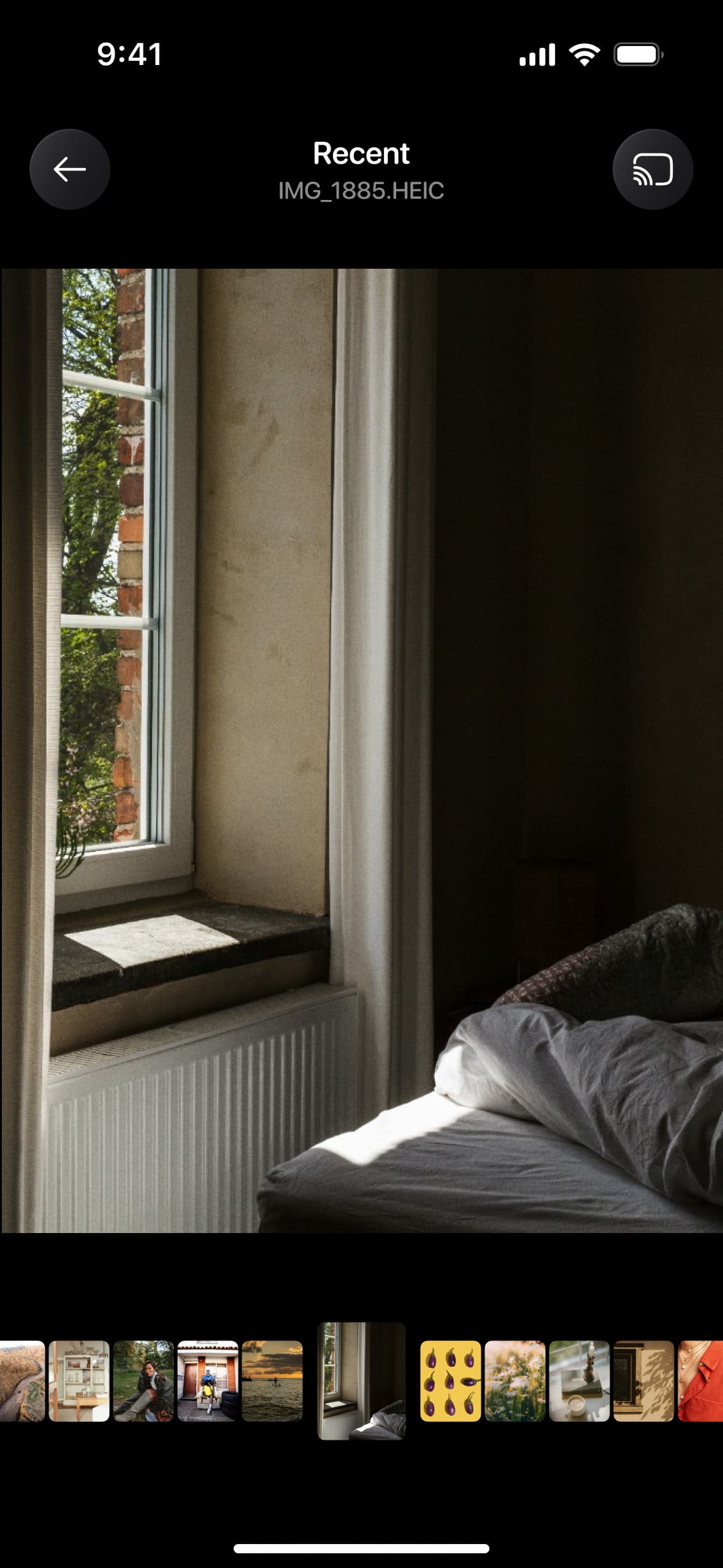
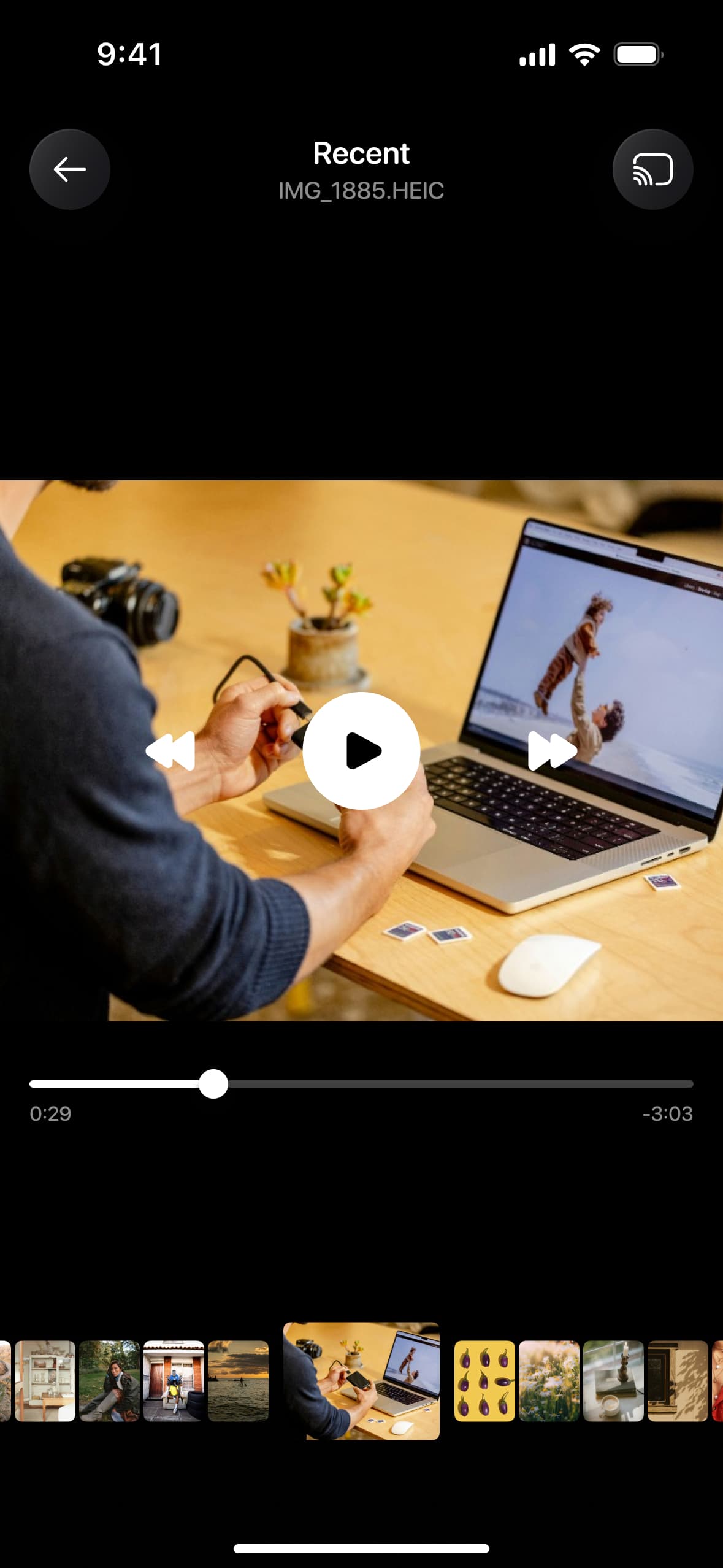
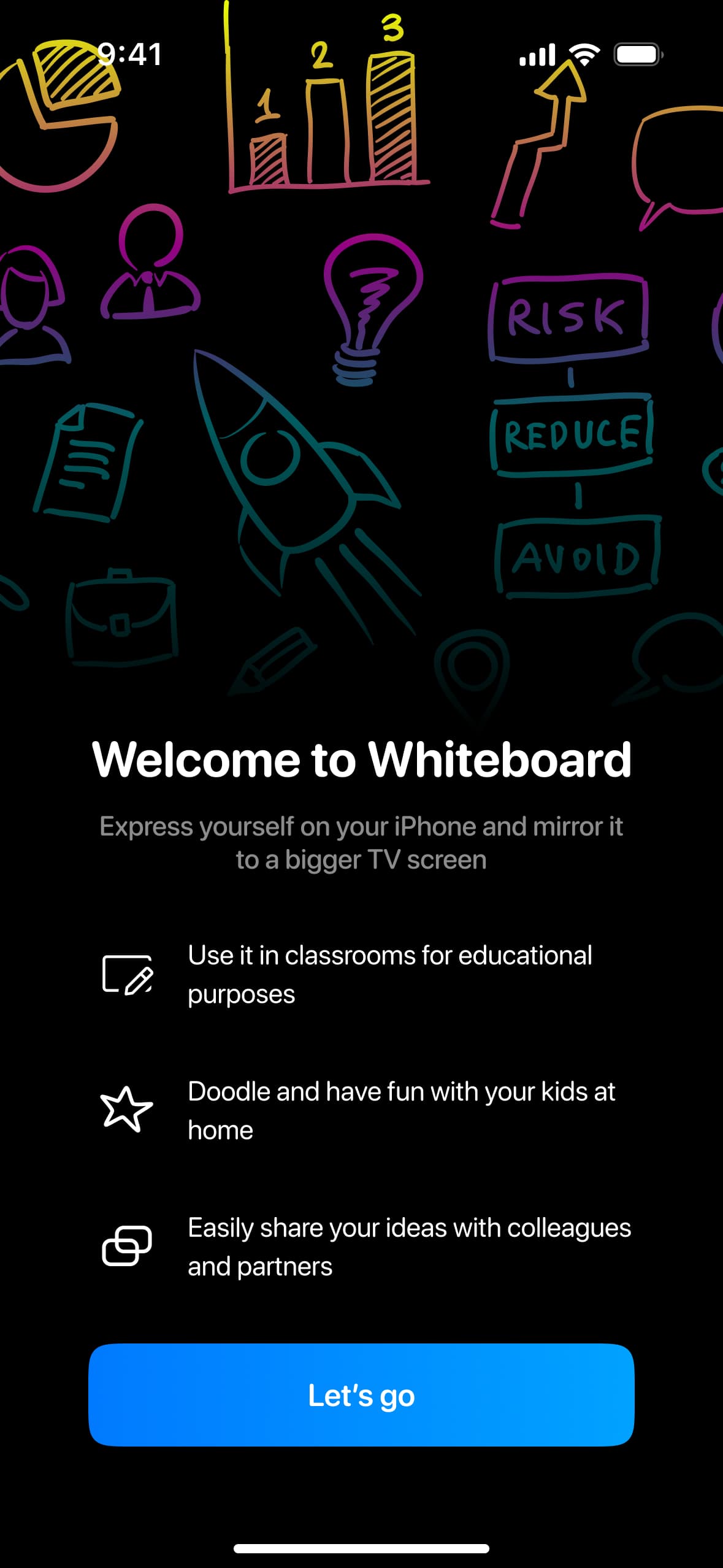
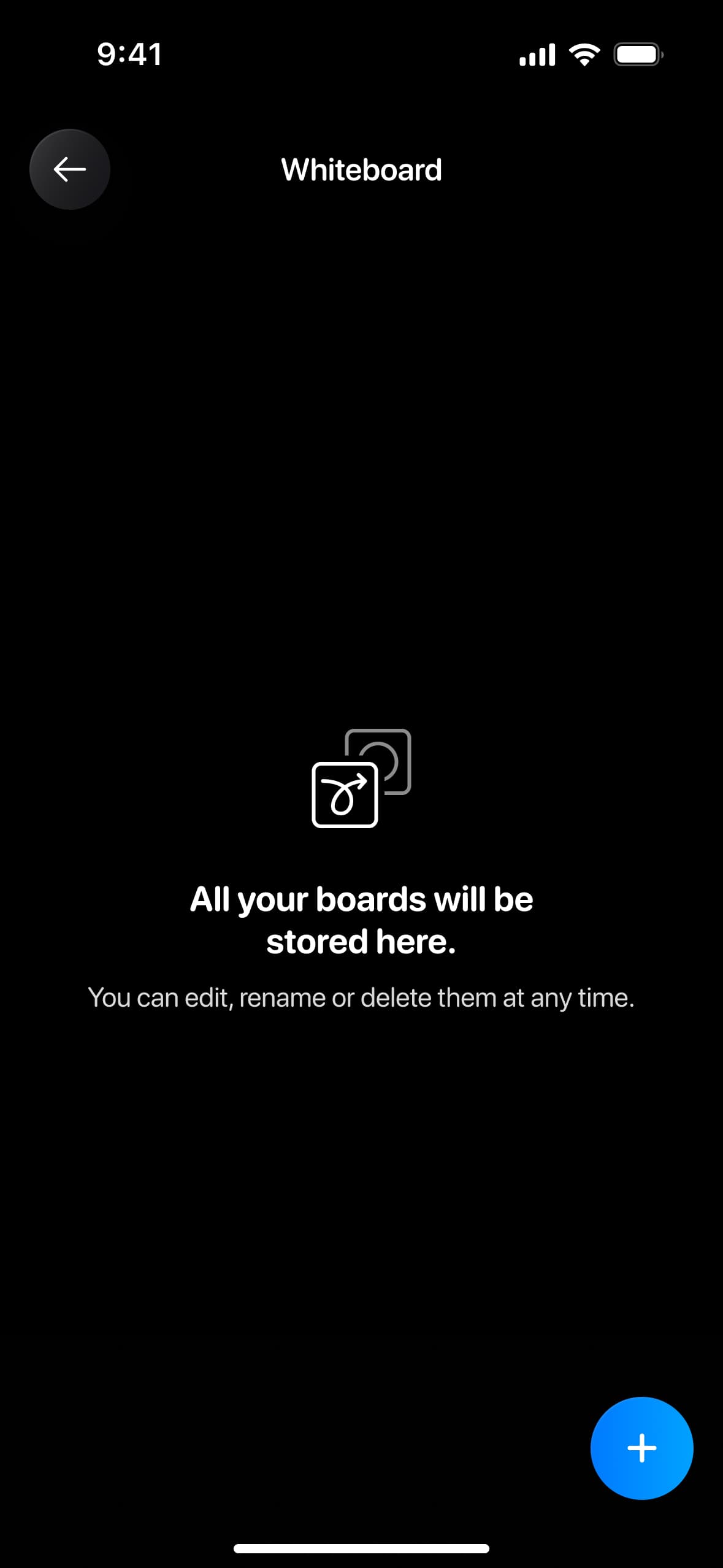
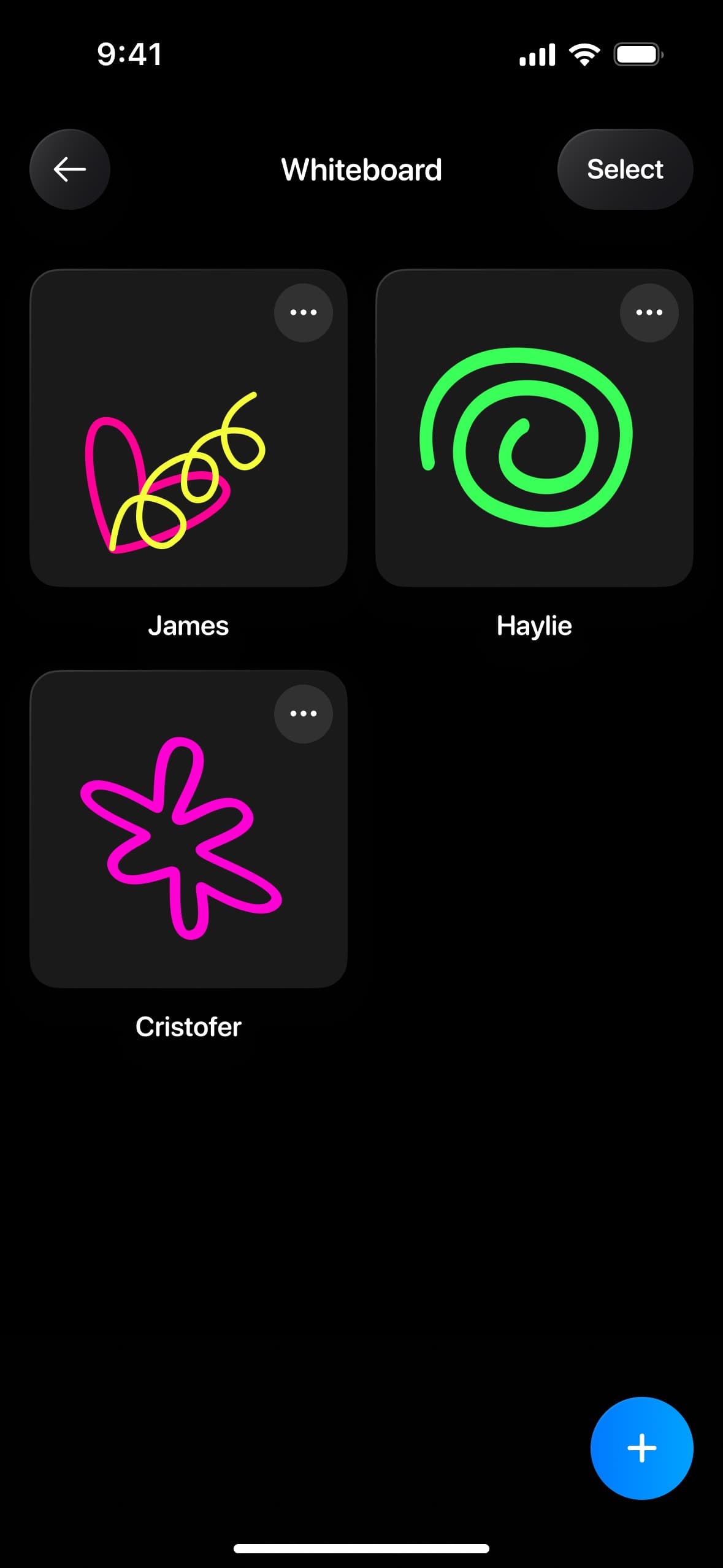
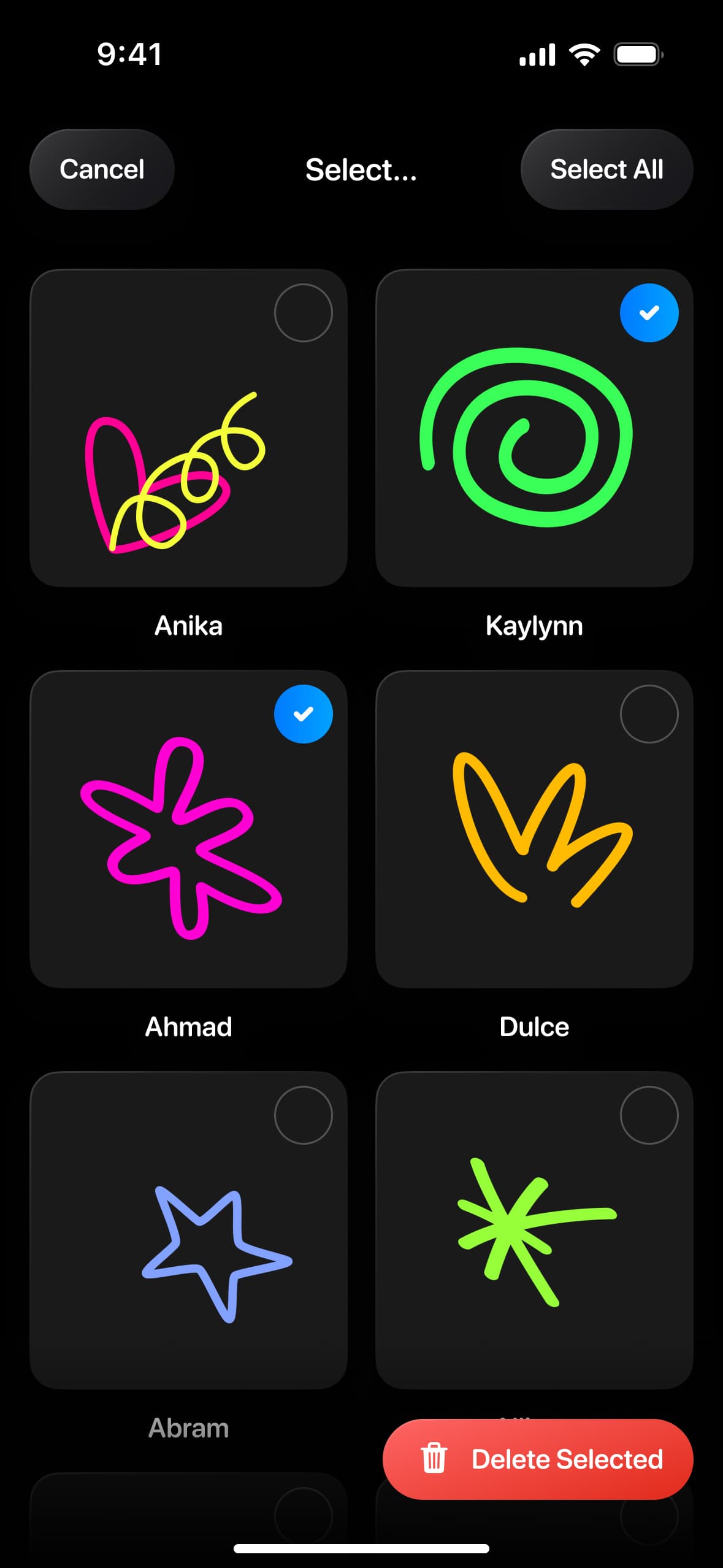
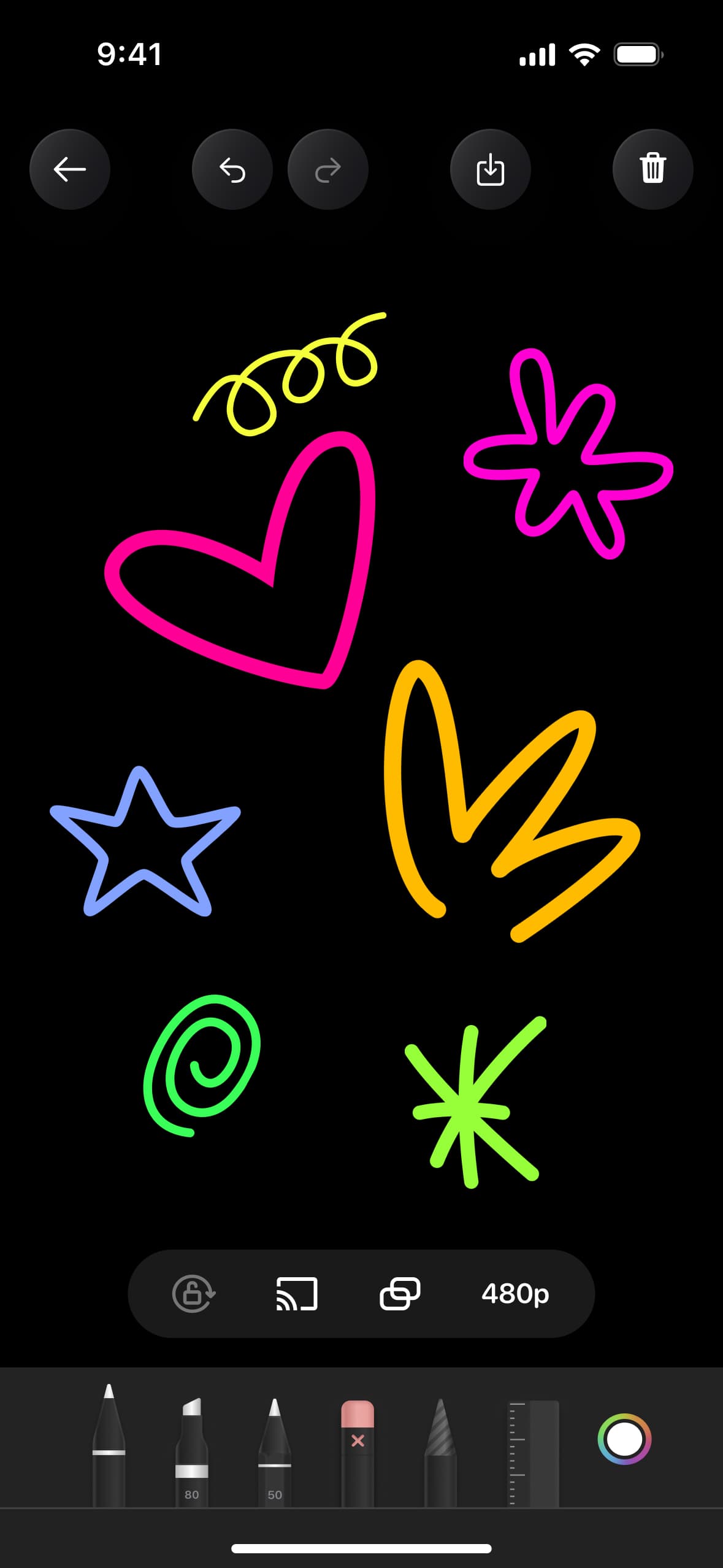
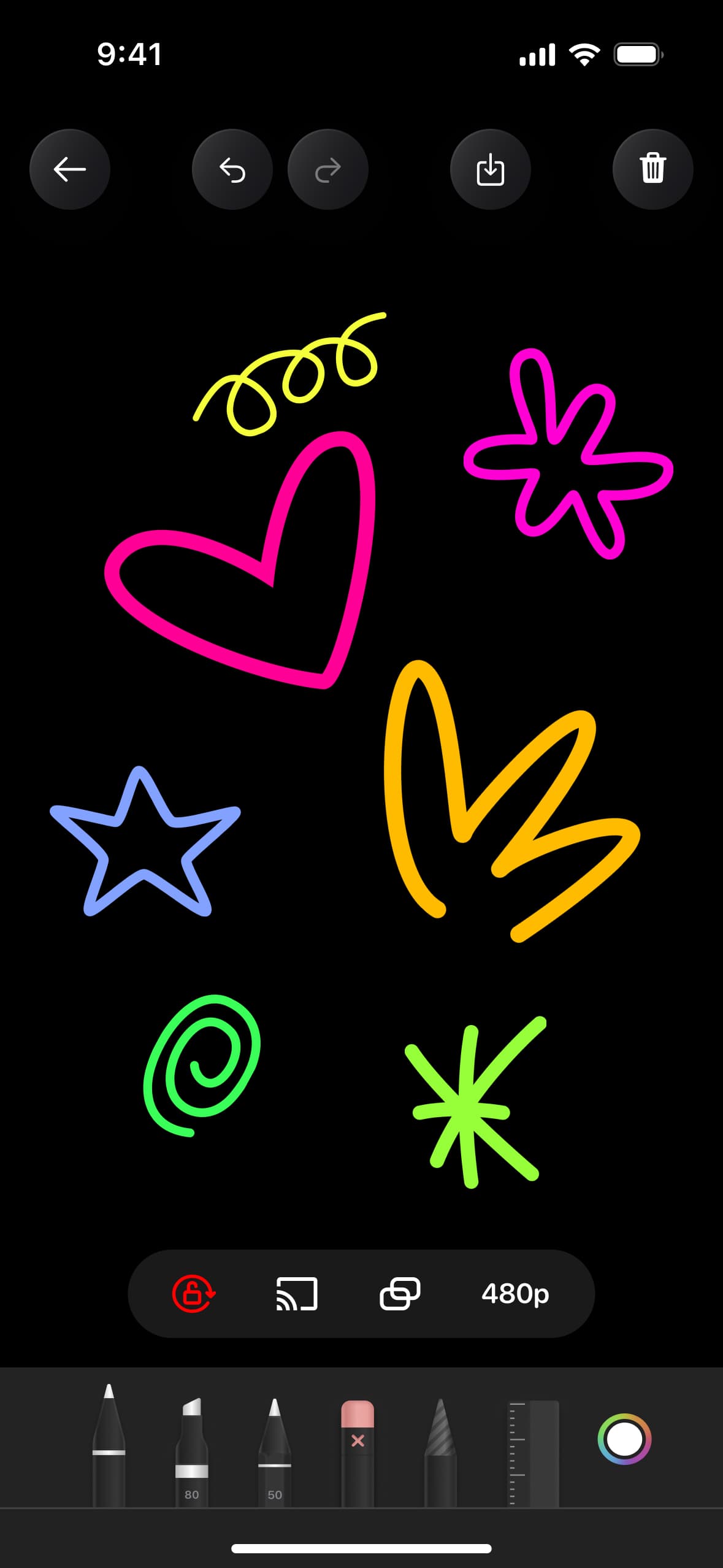
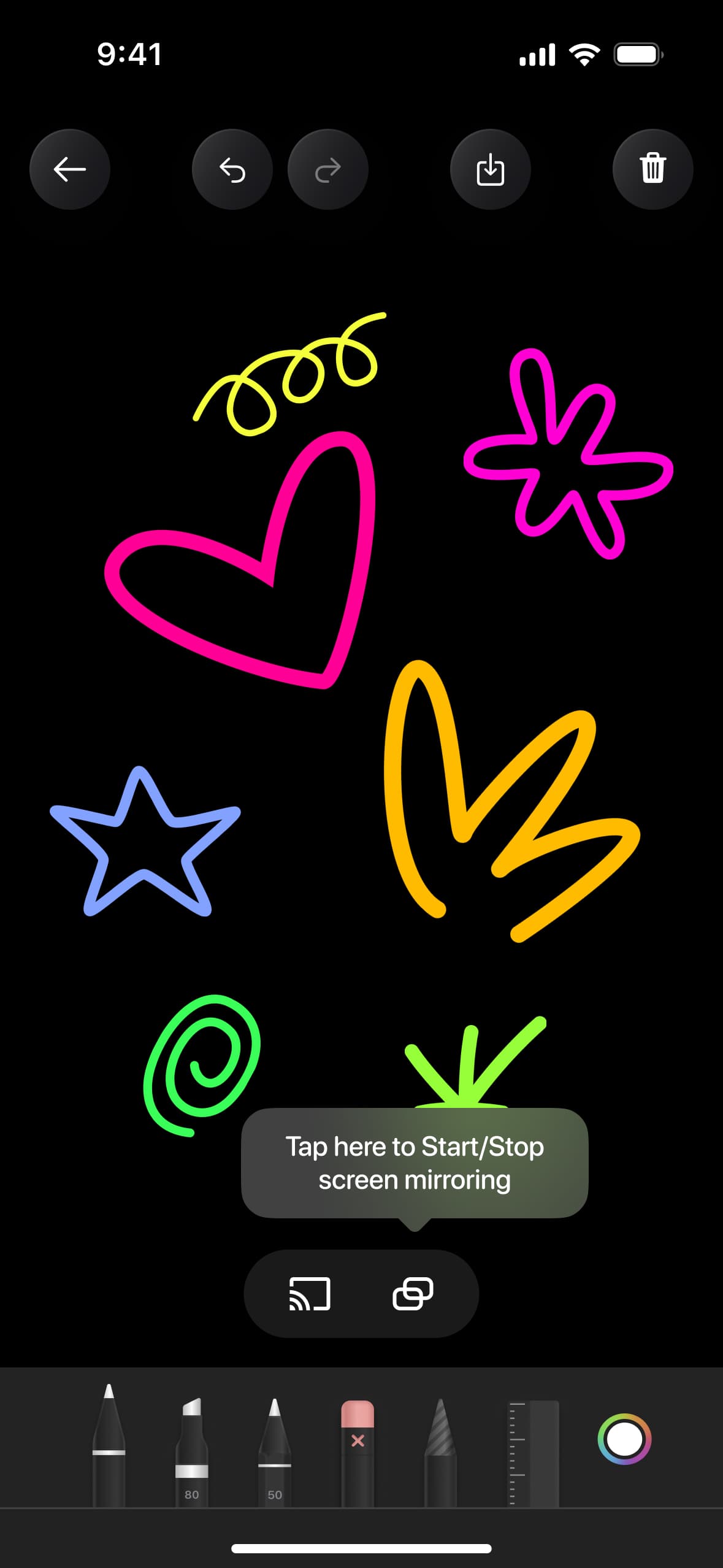
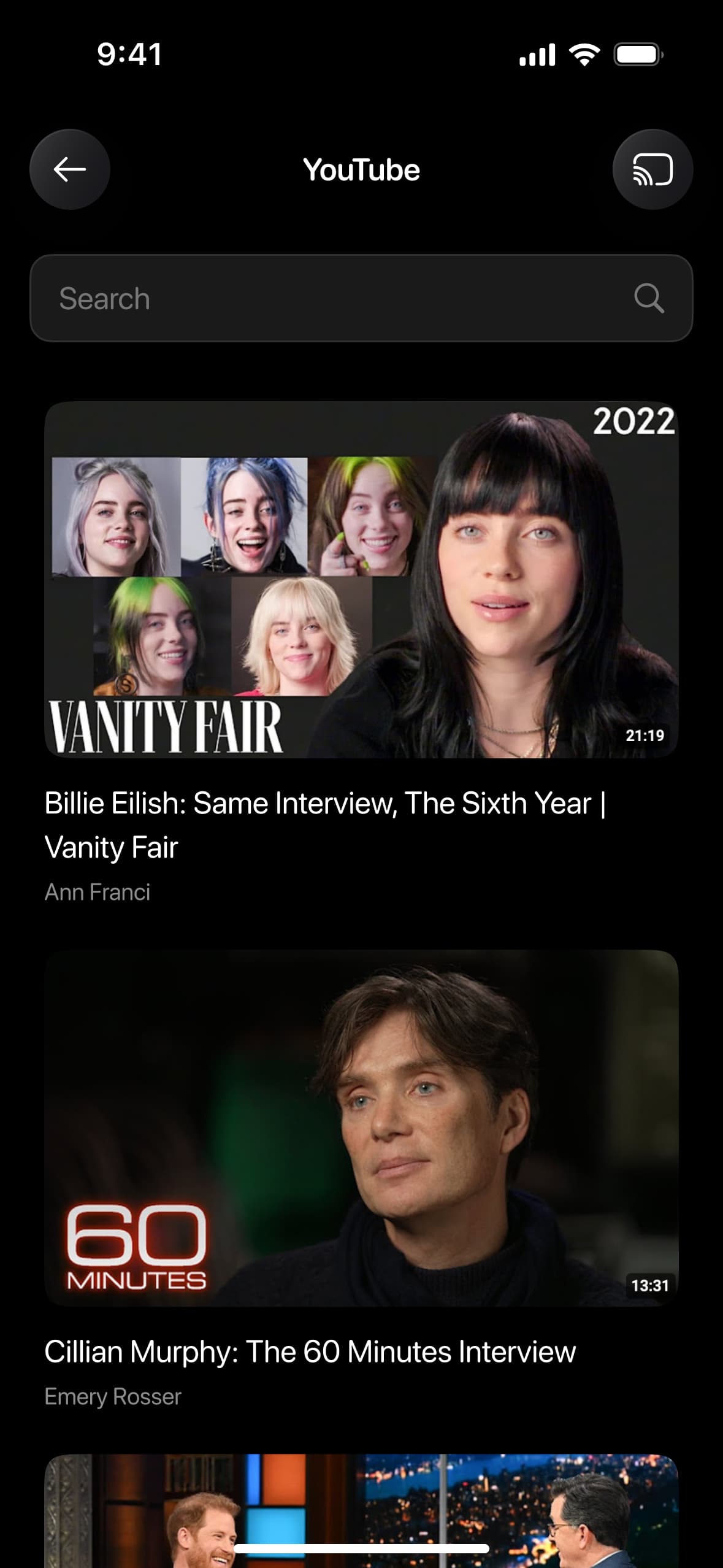
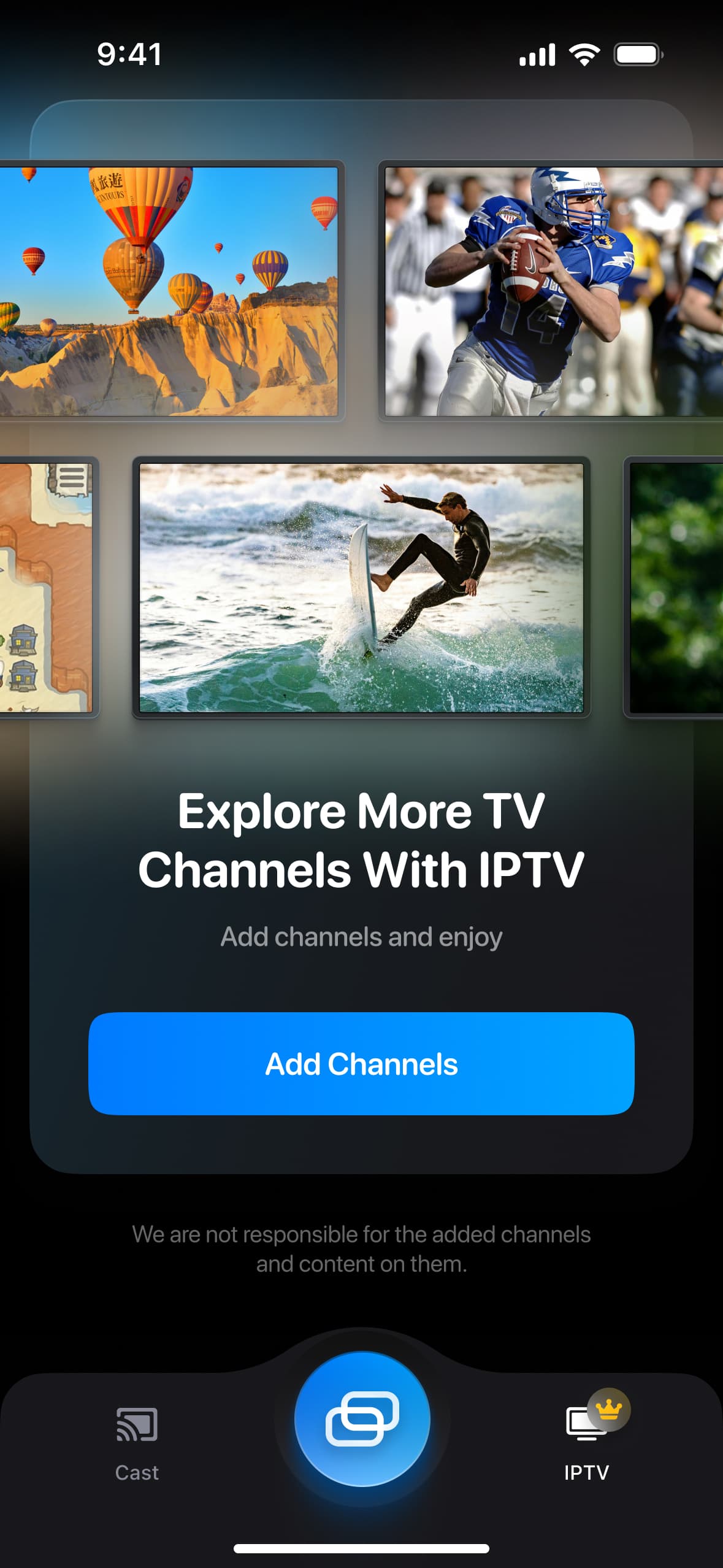
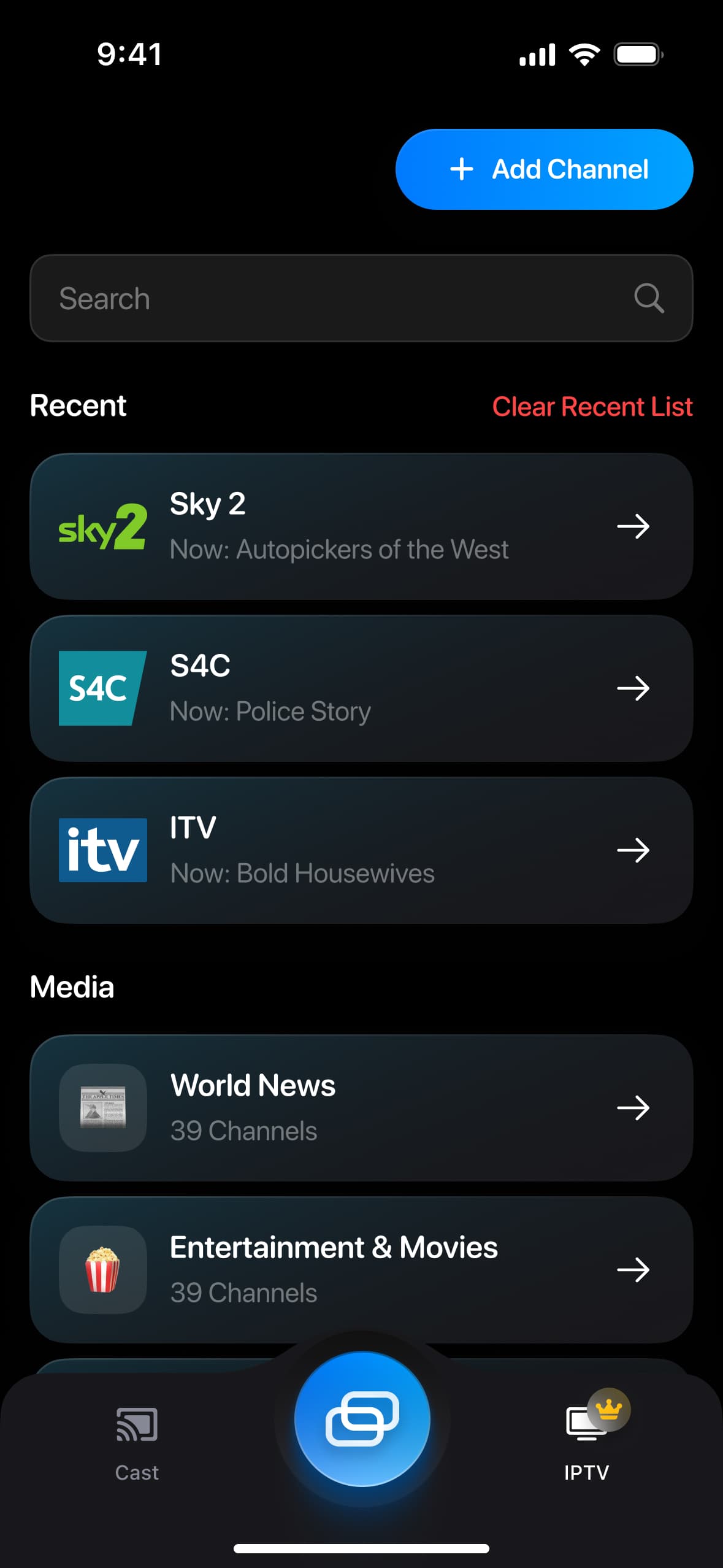
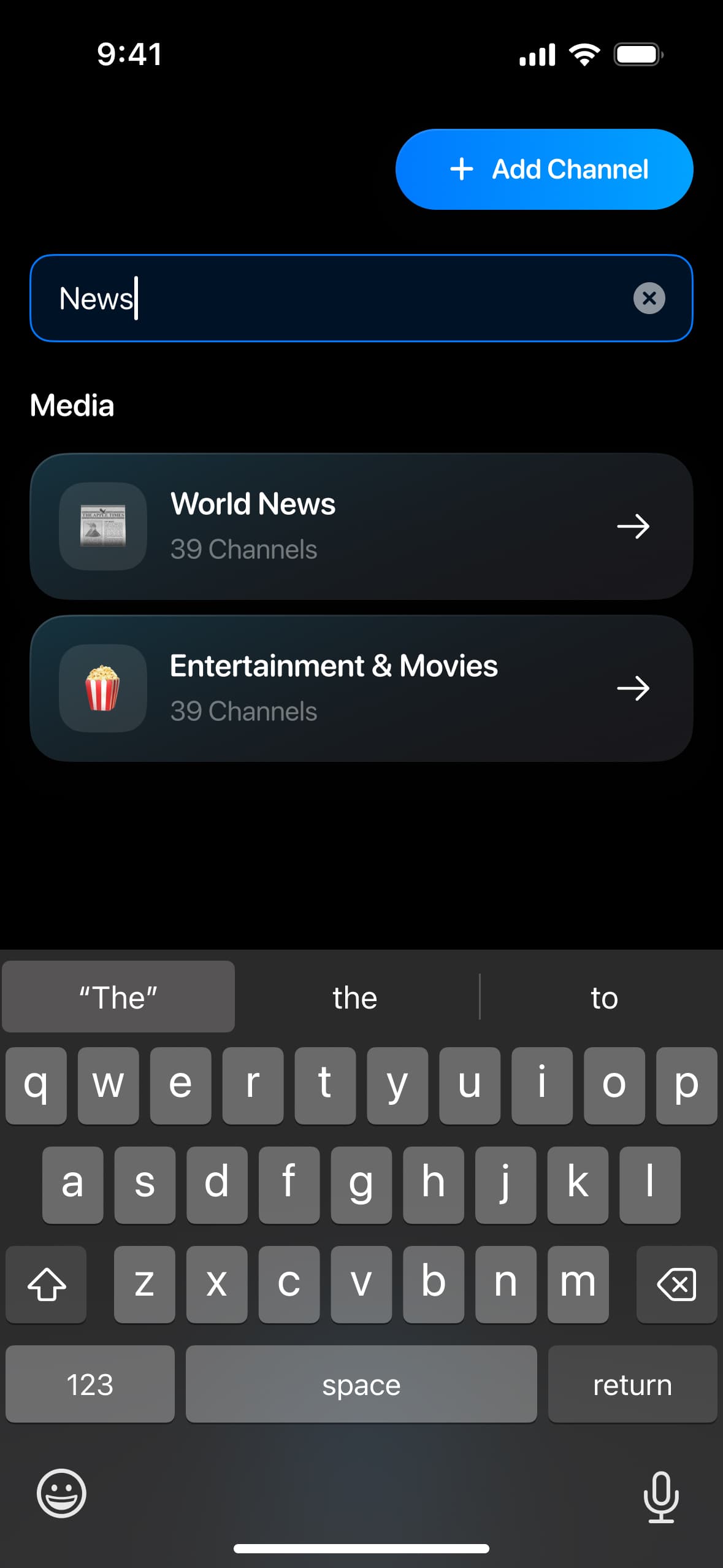
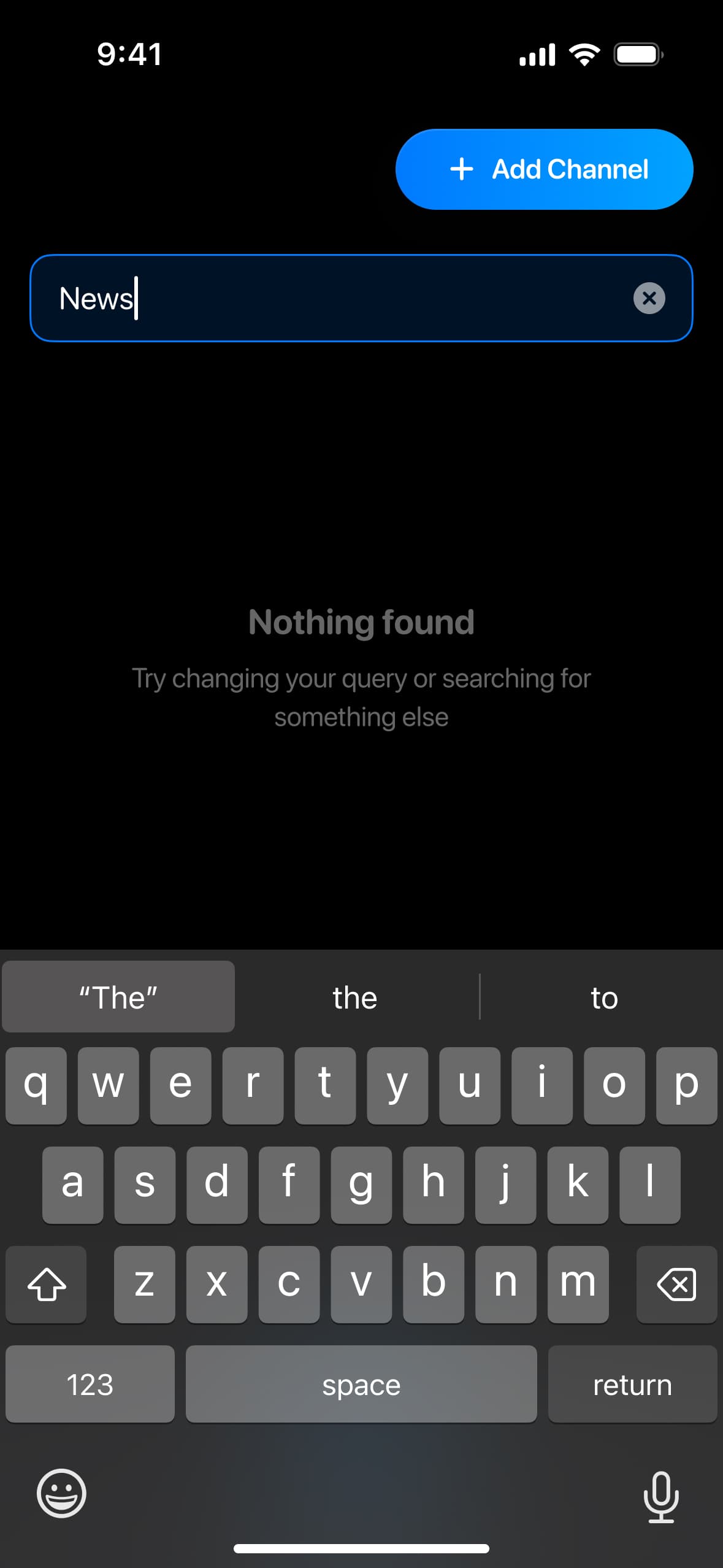


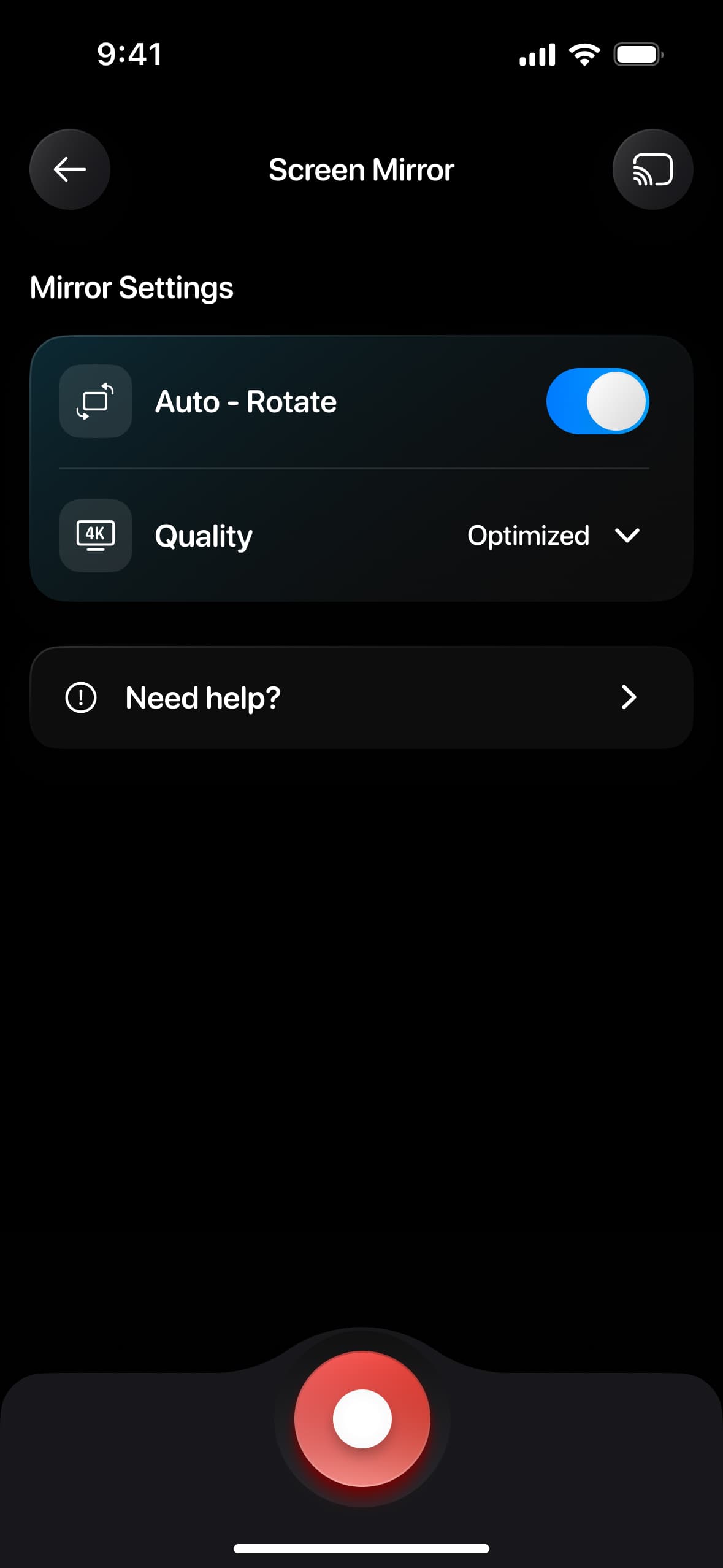
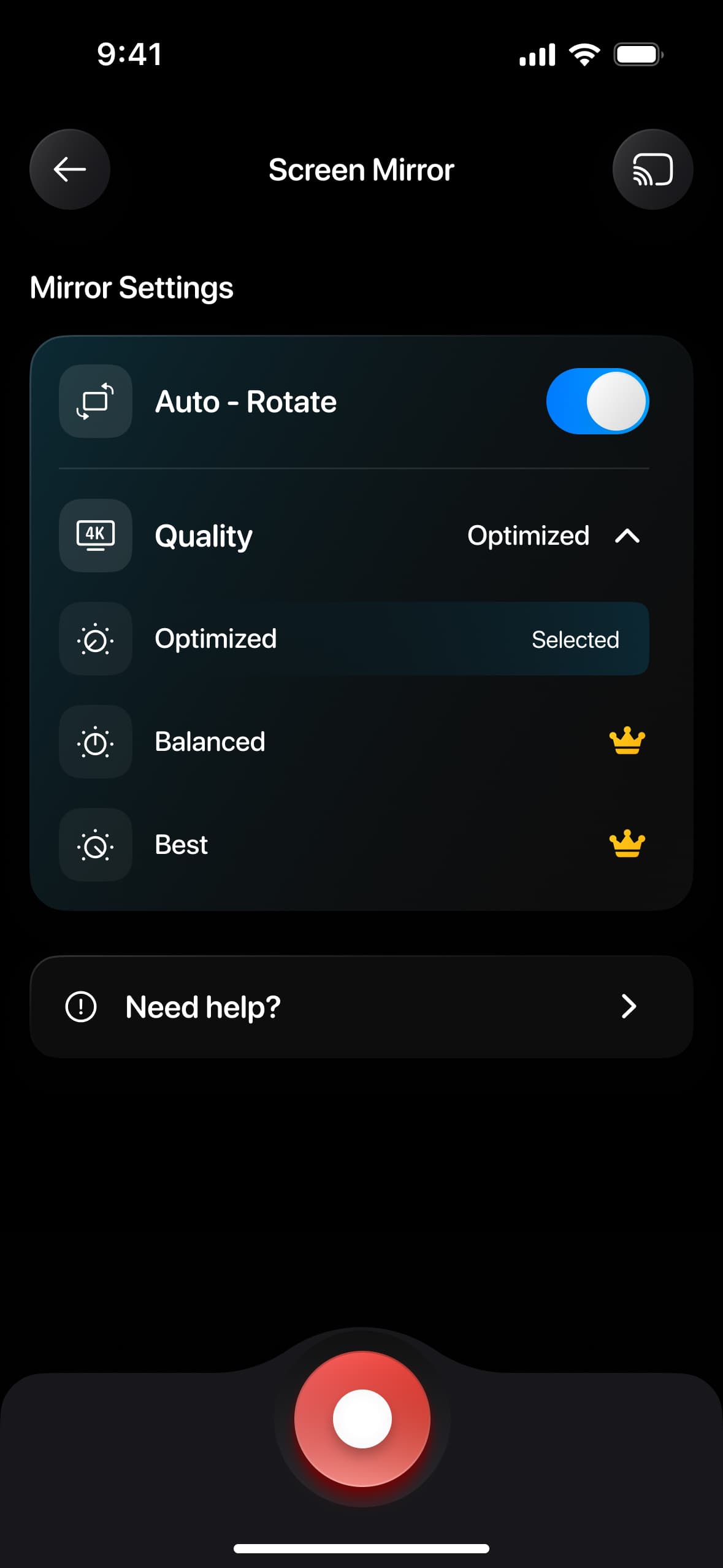
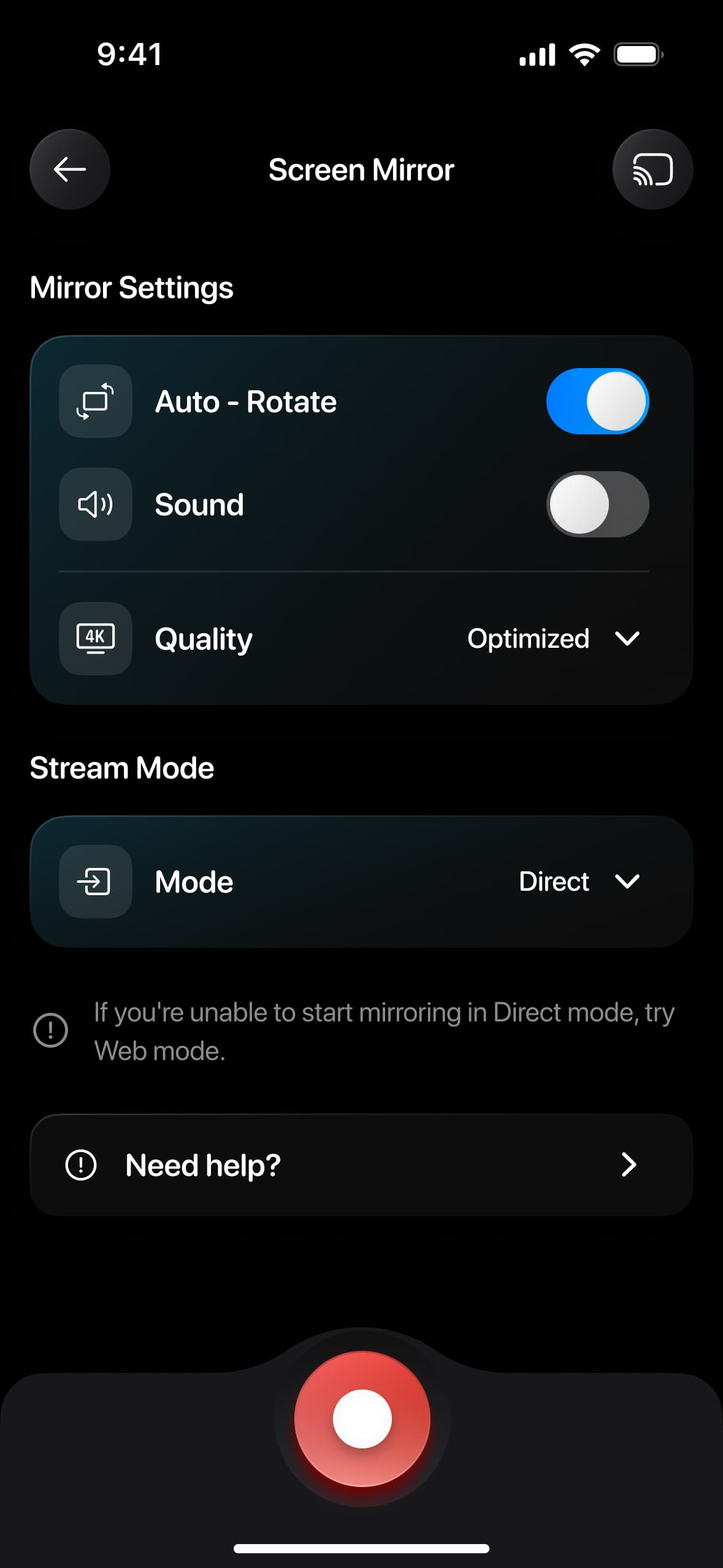
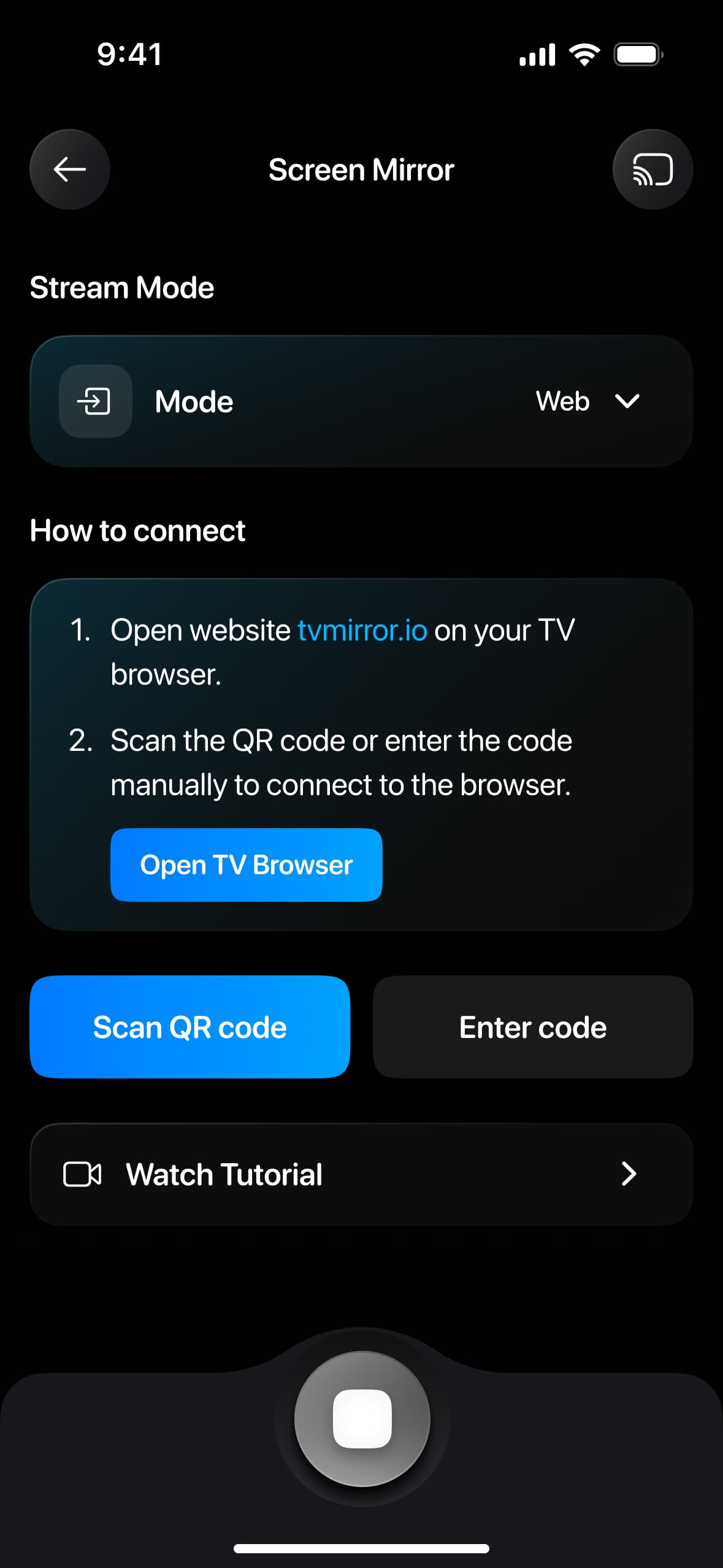
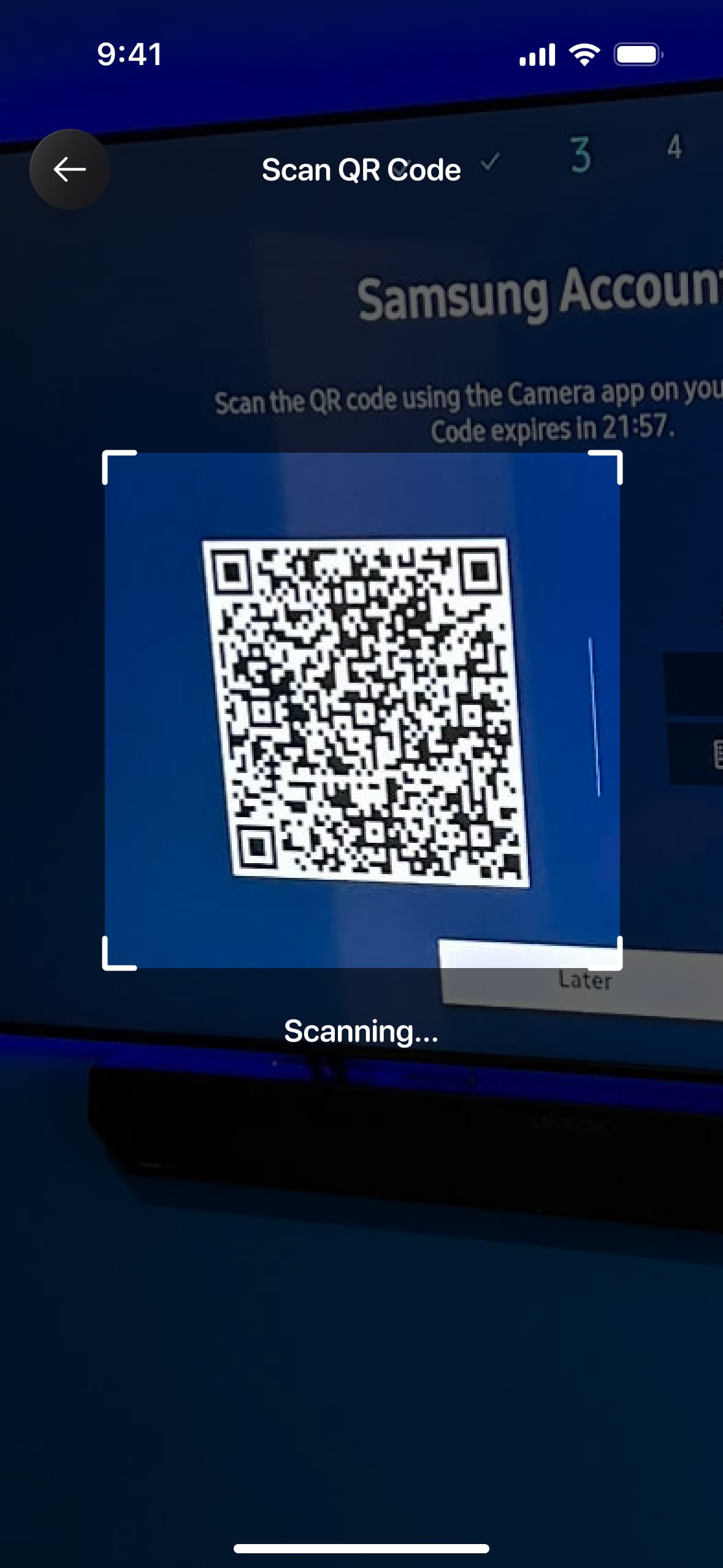
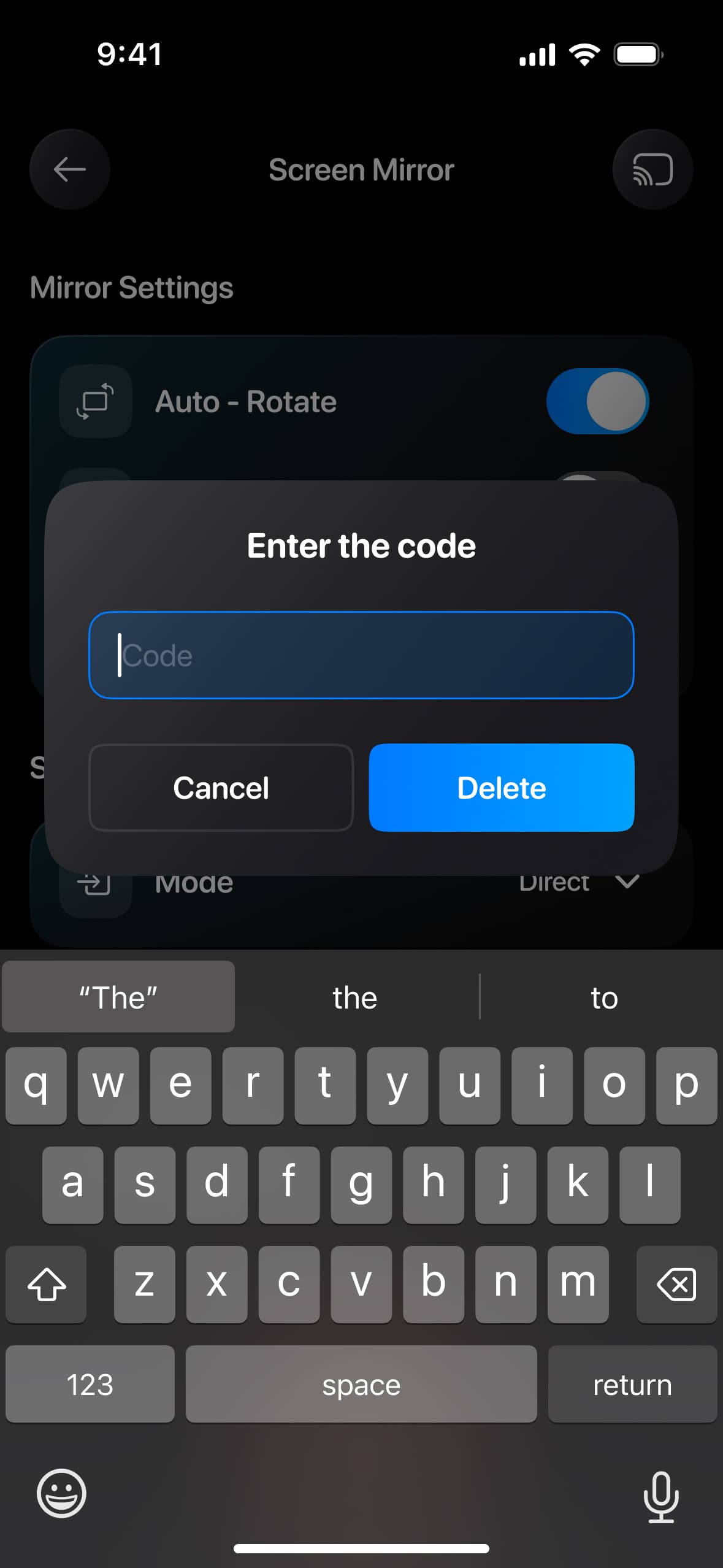
Getting started with screen mirroring is quick and simple. Just connect your iPhone or Android device to the same Wi-Fi network as your TV, open the app, and select your device. In just a few taps, you’ll be able to mirror your screen and enjoy your favorite content on the big screen.

Movie night magic!
This app is perfect for movie lovers! I can easily mirror my phone and watch my favorite films right on the big screen. The quality is super clear, and there’s no lag at all. Total game changer for movie nights!
Family memories on the big screen
We used this app to share vacation photos and videos during a family get-together. Everyone loved seeing the memories on our TV. It was simple to use and worked flawlessly!
Great for work presentations
I used this app to cast a presentation from my phone at a meeting — no wires, no fuss. The screen mirrored instantly and everything was crystal clear. Super professional and super easy.
Football without a hitch!
Streamed the whole football game to my TV straight from my phone with no issues. It felt like I had a built-in sports channel. Definitely keeping this app handy during game season.
Fun with the kids
My kids love when we play mobile games together on the big screen. The mirroring is smooth and responsive, so it’s just like playing on a console! Great bonding time.
Easily cast your iPhone or iPad screen to TV in high definition. No cables, no delays—just smooth and effortless mirroring. Perfect for movies, presentations, and gaming!

To use the remote control app, ensure that your devices are connected to the same Wi-Fi network. Also, make sure to disable any VPN or proxy services to allow the app to connect to your TV
On the right you can easily browse per subject or use the search bar to find your specific answer. Every answer offers a clear explanation on how to solve your problem. When available you can find the necessary screenshots or instruction video in the answer.
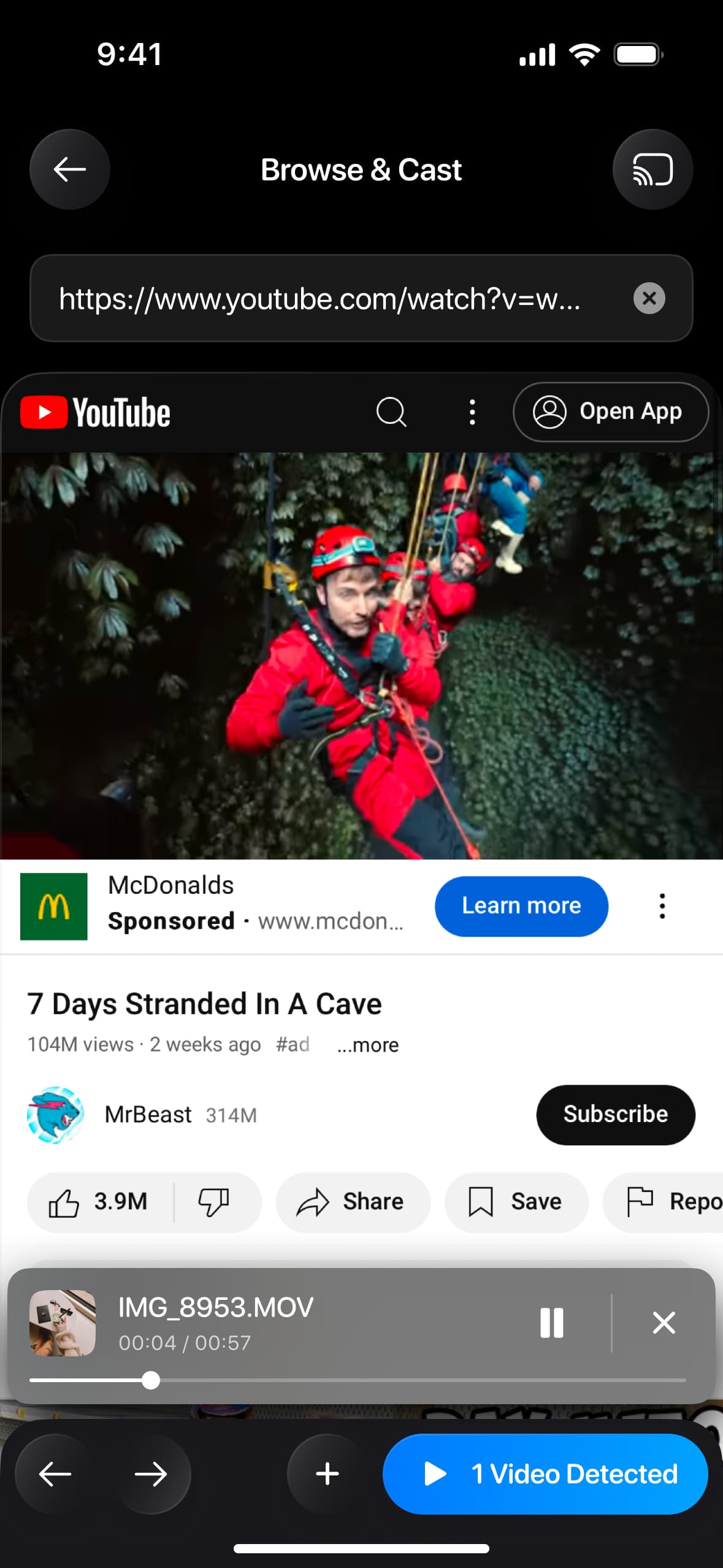
Once you’re connected to the TV, you can start mirroring your screen or cast content such as photos, videos, YouTube and more. Follow the steps below to get started:
Usually, basic steps you need to complete are below:
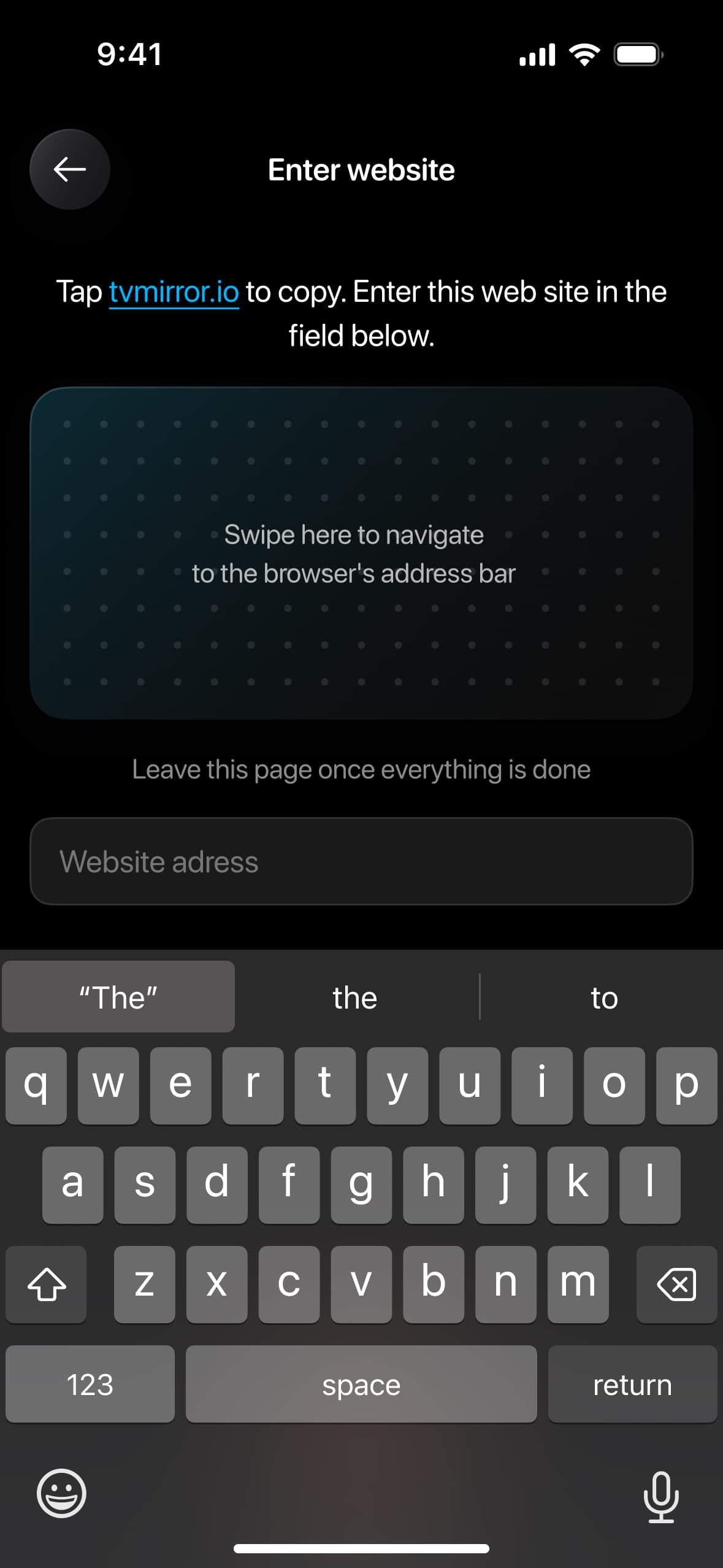
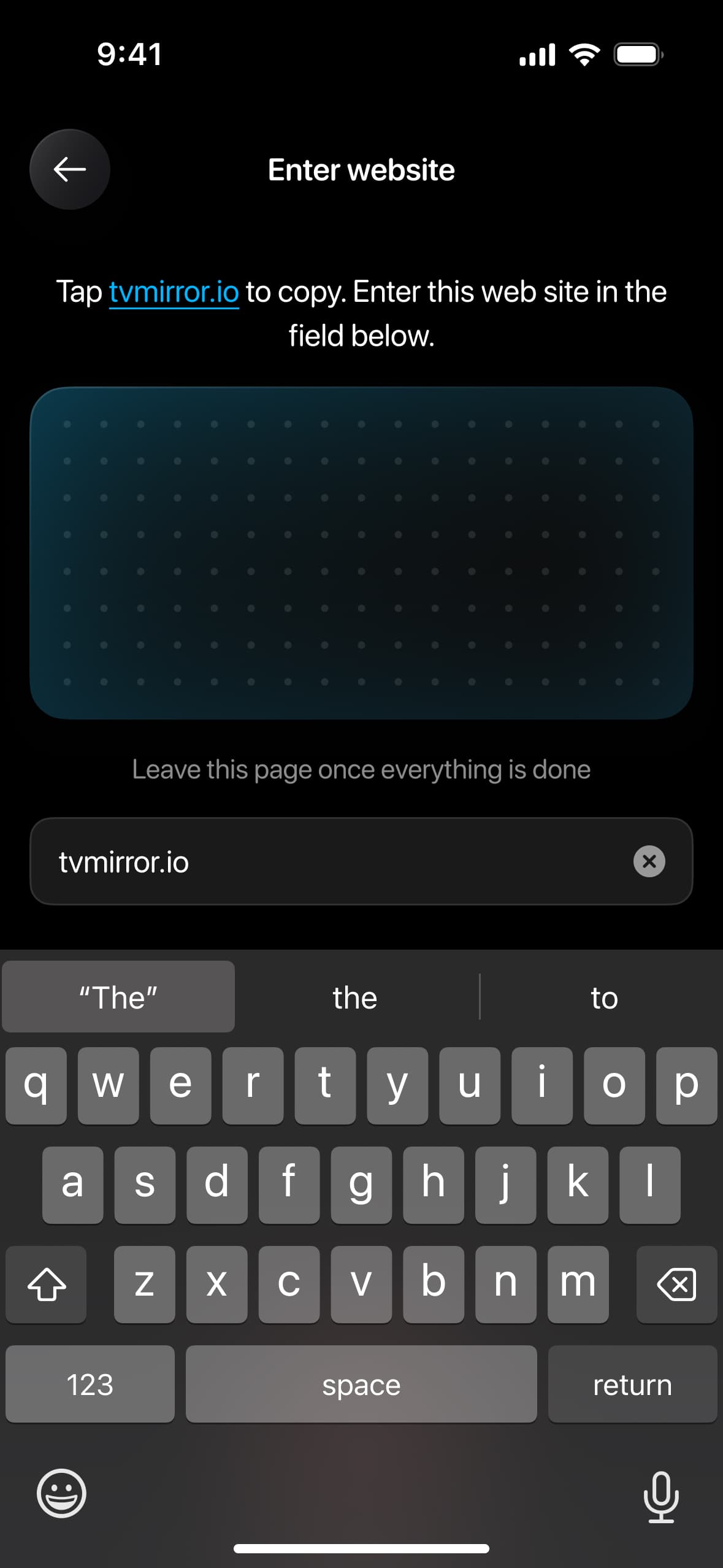
In some rare cases, you need to paste the following link into your TV’s browser to start mirroring (these cases sometimes occur on Samsung and LG TVs, it may also help if you have a TV from another manufacturer):
Here’s the list of supported TVs: Samsung, LG, Roku, Fire TV, Chromecast. Other manufacturers are also supported but we cannot guarantee 100% compatibility due to different operating systems and TV models. Also, if your TV uses DLNA then you may experience random connection issues.
In some cases, issues may be caused by an older router. In this case, we would advise you to contact us at support@appvillelimited.com and provide details about your router (usually, a model name or a picture of a model located at the back of the router may be enough).
Screen Mirroring: Tap the large round button with two screens on the app’s home screen.
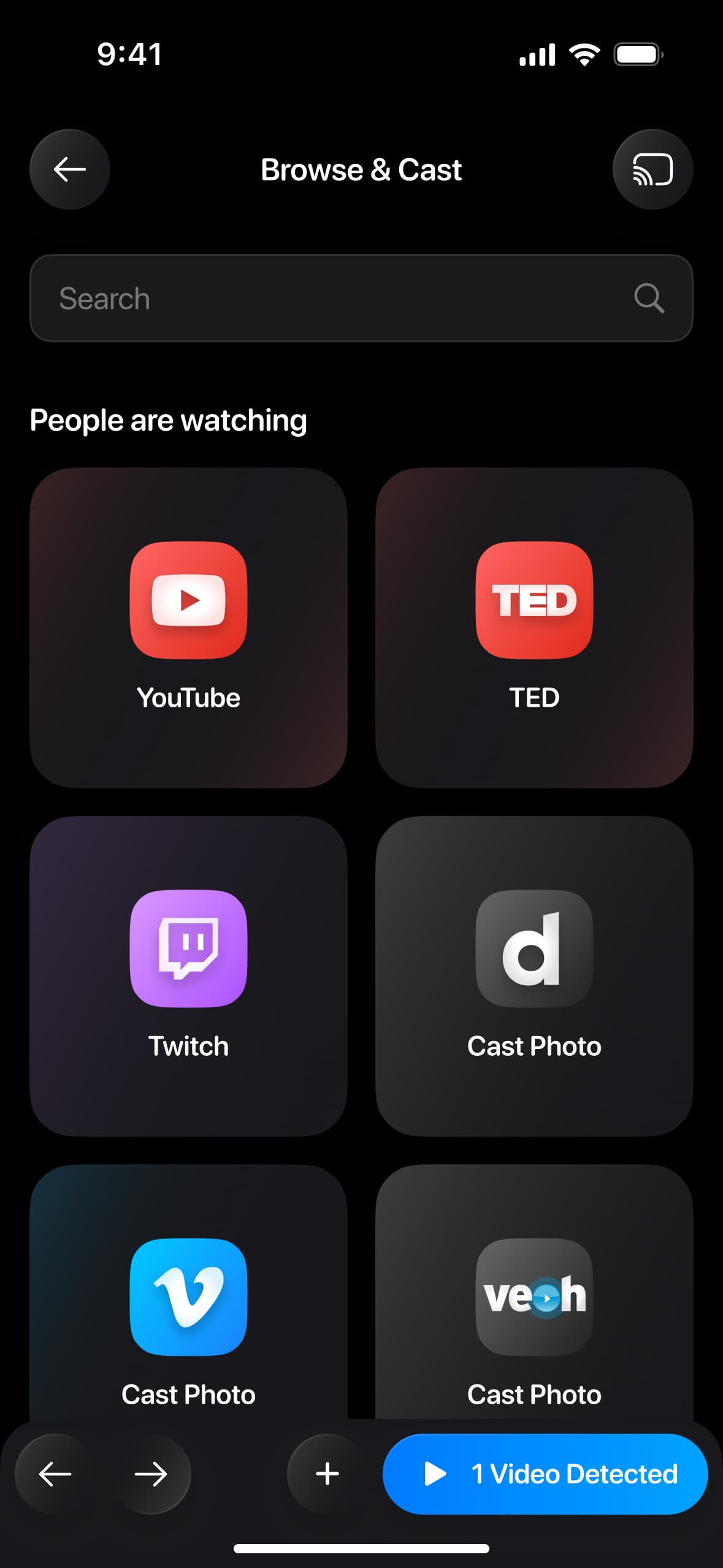
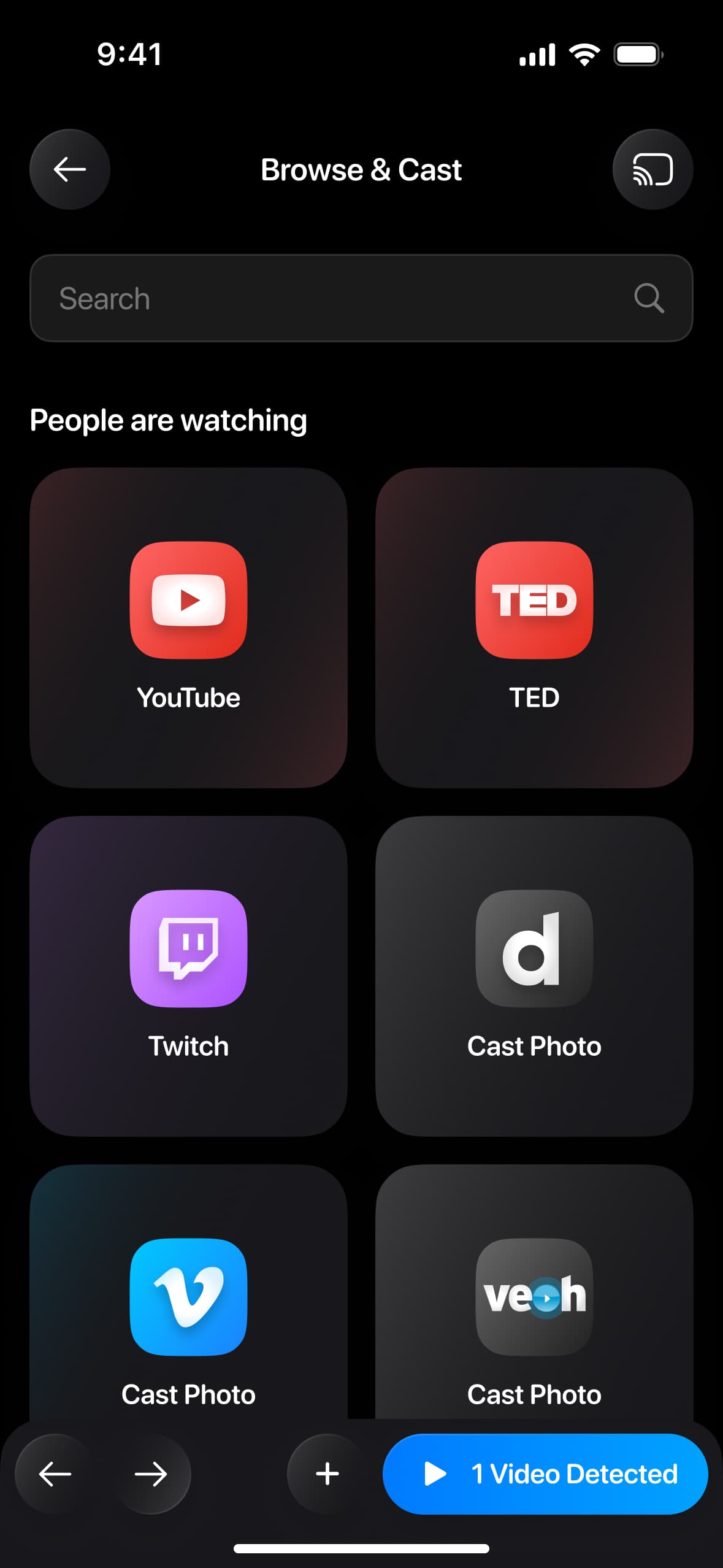
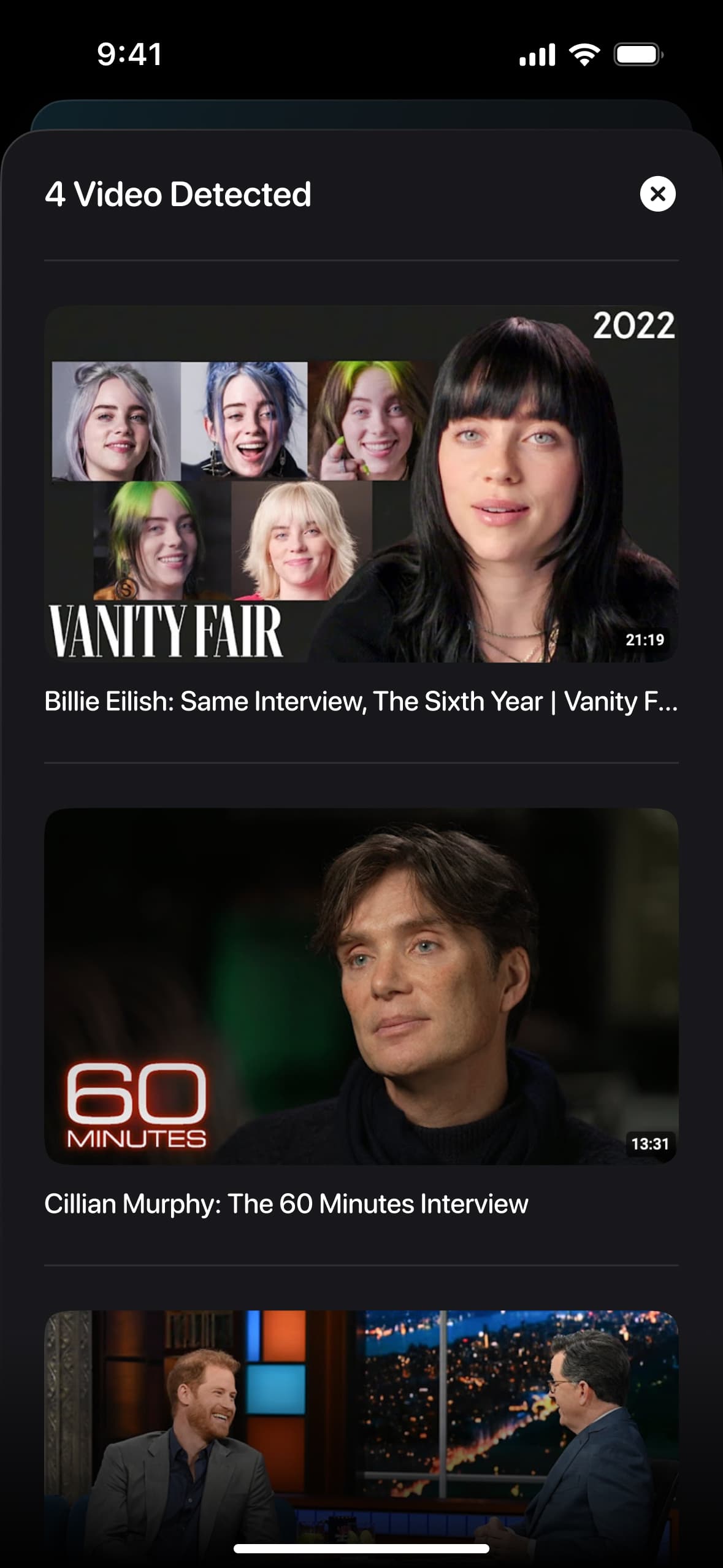
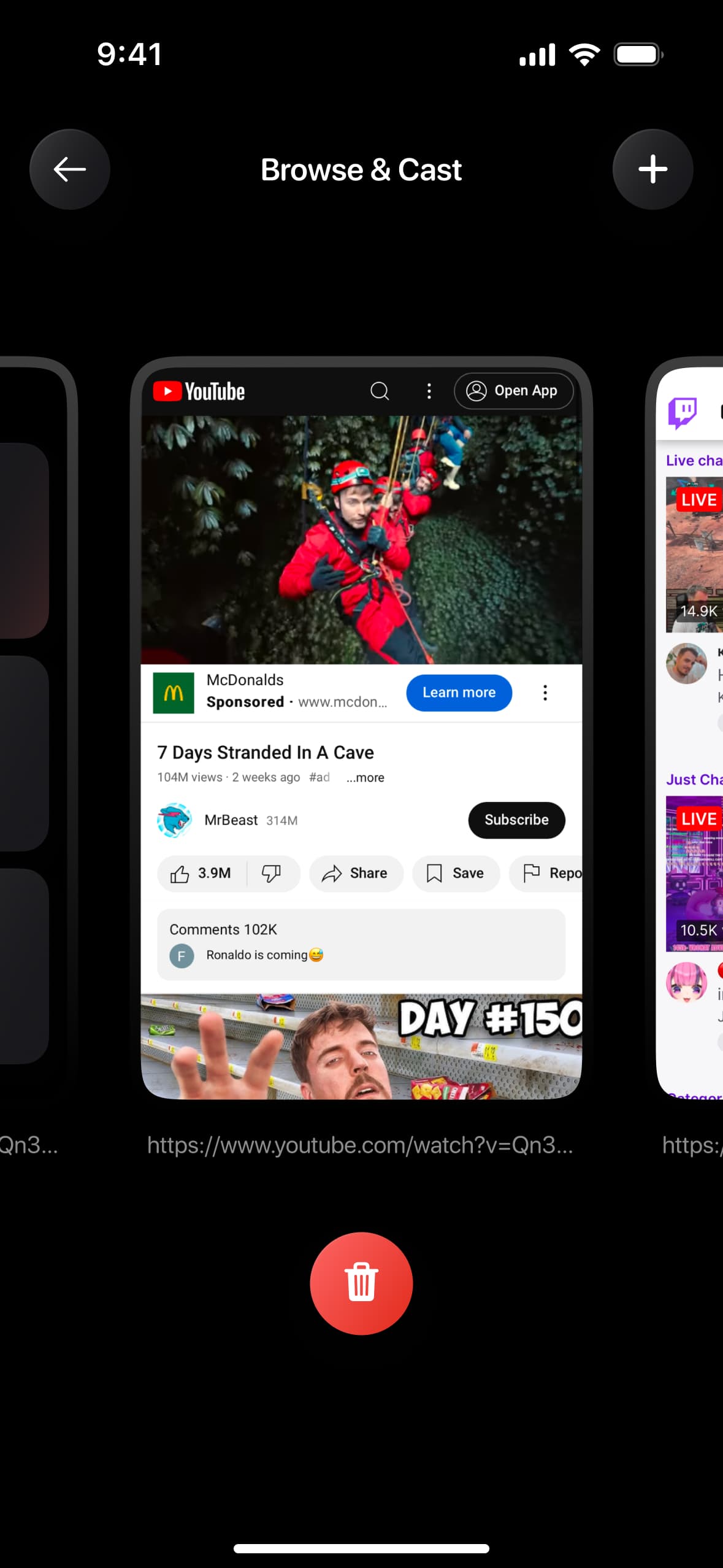
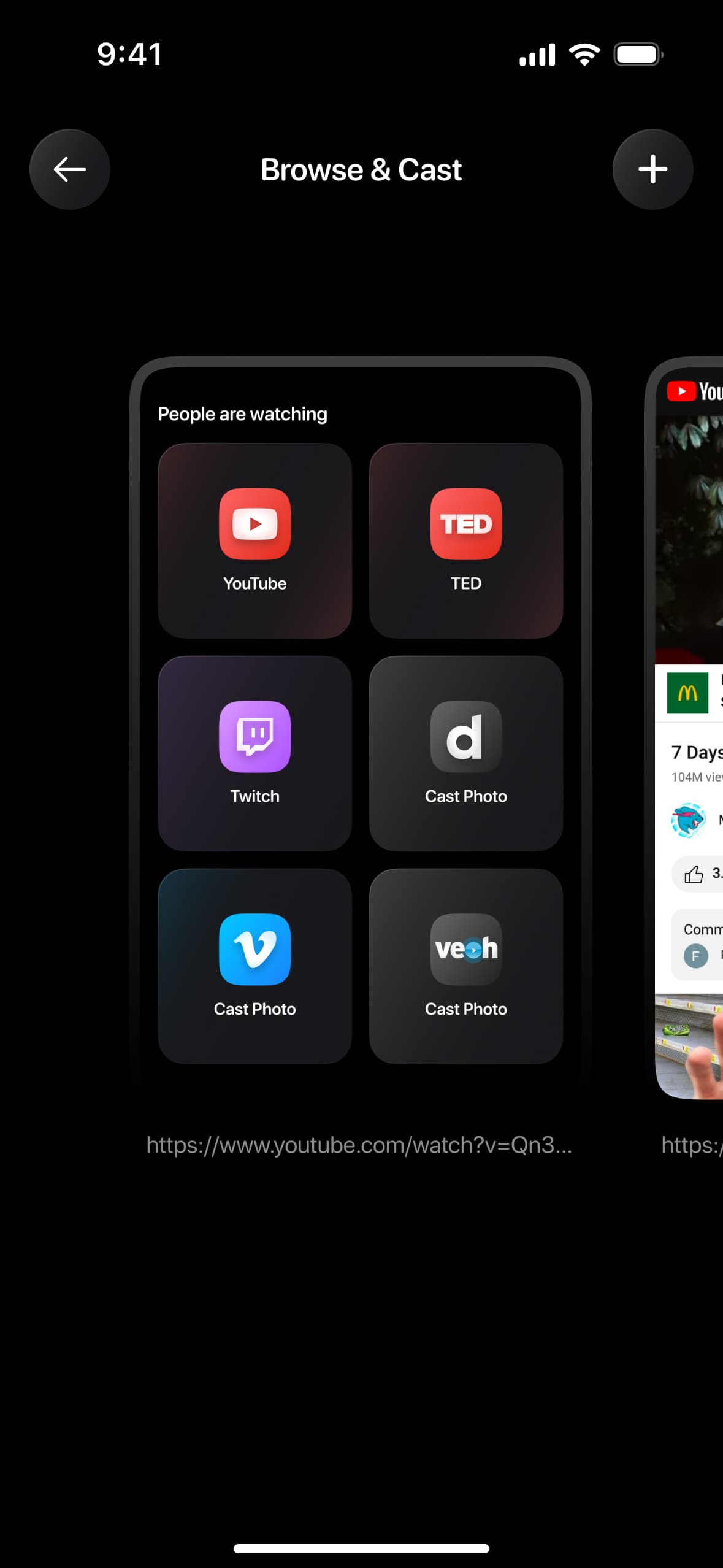
You can also cast from YouTube, Vimeo, TED, Twitch, or stream media from the Gallery saved on your phone.
Just use Screen Mirroring to mirror any app from your phone’s screen.
If you are using the Cast feature, make sure your video has sound; it will play on the TV.
For the Screen Mirroring feature, currently, audio functionality on TV is available only for premium users. If you already have a subscription, audio support for mirroring might not be available due to your specific TV model. At present, audio works with LG, Samsung, and Chromecast TVs. Our team is working hard to extend it to other TV models as soon as possible.
If you connected successfully but your connection drops after a few minutes, please describe the issue and let us know which type of content you were viewing (photos or videos, video from browser, YouTube, or other streaming service). Send us a note here: support@appvillelimited.com.
There is no need to purchase any additional hardware or cables to use our application. Please ensure that your smartphone with the installed application and your television are connected to the same Wi-Fi network. Your television must also support the screen mirroring function. Most modern Smart TVs support this feature. A complete list of supported devices can be found in the relevant section.
Please contact us at support@appvillelimited.com and we’ll fix it as soon as possible. Make sure to indicate which of the shortcuts doesn’t work.
There is no need to purchase any additional hardware or cables to use our application. Please ensure that your smartphone with the installed application and your television are connected to the same Wi-Fi network. Your television must also support the screen mirroring function. Most modern Smart TVs support this feature. A complete list of supported devices can be found in the relevant section.
You can watch it on the website in the TV Cast section
According to the requirements regarding copyright protection, we are not permitted to stream content from streaming providers such as Netflix, HBO Max, SkyShowtime, Amazon Prime, Hulu, Disney+, Apple TV,+ and others through screen mirroring or web browsers. This restriction is in place to ensure compliance with copyright laws and the terms set by these service providers.
According to the requirements regarding copyright protection, we are not permitted to stream content from streaming providers such as Netflix, HBO Max, SkyShowtime, Amazon Prime, Hulu, Disney+, Apple TV,+ and others through screen mirroring or web browsers. This restriction is in place to ensure compliance with copyright laws and the terms set by these service providers.
Performance may be subject to network variability, potentially resulting in latency. We are committed to optimizing performance to minimize latency and provide a seamless experience.
Our application is available free of charge. Certain features, such as high-resolution streaming, are accessible through a subscription. Within the application, you will find various subscription options, including those with a complimentary trial period, as well as monthly, annual, and other subscription plans.
Regarding connecting your smartphone to different devices, there are no restrictions in this case.
According to the requirements regarding copyright protection, we are not permitted to stream content from streaming providers such as Netflix, HBO Max, SkyShowtime, Amazon Prime, Hulu, Disney+, Apple TV,+ and others through screen mirroring or web browsers. This restriction is in place to ensure compliance with copyright laws and the terms set by these service providers.
Please note that it may take approximately 30-60 seconds after turning on the TV before it can be detected by the app.
2 .If you are using a TV box, make sure it is powered on and selected as the input source on the TV for streaming.
You can check this on the TV by going to Settings > Network or Connection > Wi-Fi or Wireless Connection.
If your devices are on different networks, it’s sometimes quicker and simpler to change the network on your smartphone
If you have a multi-band router (with both 2.4 GHz and 5 GHz bands), ensure that both your TV and iOS device are connected to the same band.
5 .Check if you are not using a VPN, proxy, or similar tools. Go to Settings > VPN or Settings > General > VPN & Device Management
6 .Ensure that the app has permission for Local Network Access. Navigate to Settings > Privacy & Security > Local Network, and confirm that the TV Remote app has the necessary permissions.
7 .Verify if your TV’s clock is synchronized with the current internet time.
If you’re still unable to connect.
– Unplug the TV, wait 60 seconds, then plug it back in and turn it on, allowing an additional 30-40 seconds for network connections to establish.
– Сlose and reopen the app
– Restart your phone
– Reboot the router and wait 1-2 minutes for the connection to restore.
If you’re an advanced user, please follow the instructions below. Otherwise, please feel free to contact us.
Once you’re connected to the TV, you can cast content such as photos, videos, YouTube and more. Follow the steps below to get started.
Our applications is available free of charge. Certain features, such as high-resolution streaming, are accessible through a subscription. Within the application, you will find various subscription options, including those with a complimentary trial period, as well as monthly, annual, and other subscription plans.