




Remote control app for
Simplify your TV experience with our TCL Remote App. Designed specifically for TCL Smart TVs, this app gives you full control over your TV right from your smartphone. Navigate menus, adjust settings, and stream content effortlessly—all in one app.


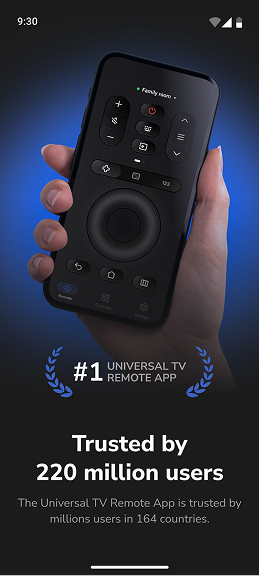
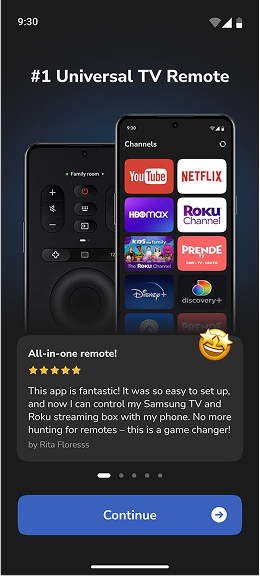
Touchpad navigation
Large touchpad for easy menu and content navigation

Hot keys for channels
Launch any of your channels directly from the app

Volume control
You can change the volume of your TV or even mute it

Built-in keyboard
The easiest and fastest way to enter any text and search

Multiple devices
You can switch between your devices in just one tap

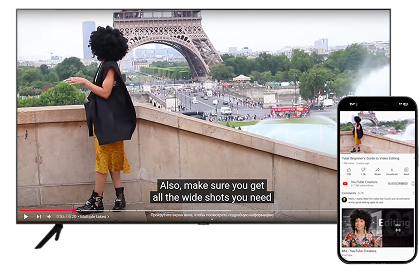
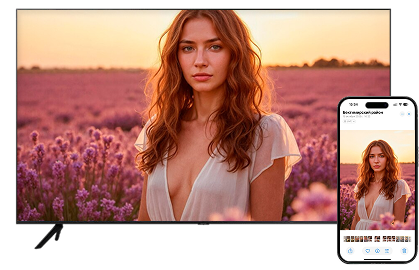
Cast media to your TV
Сast media and content from built-in Apps
How to Use Universal
TV Remote Control App
Launch the TCL TV remote app for Android or IOS, then you can control your TCL TV through your mobile device or reject anything on the device onto the large TV screen after a wireless connection setup.
- Download the TCL Remote App on your smartphone.
- Connect your phone and TCL TV to the same Wi-Fi network.
- Open the app, select your TV, and start controlling it instantly.


Control Your
Personalize Your Remote Experience
Make your app experience uniquely yours with a variety of beautiful and intuitive remote control skins. Whether you prefer sleek minimalism, bold and vibrant colors, or a more classic design, you’ll find a skin that suits your taste. Switch between skins effortlessly and enhance both functionality and style. Perfect for adding a personal touch to your TV control experience.

Additional Features of
Remote Control App
Supported devices list
Support Most TCL Smart TVs
C63 Series
- TCL 4K QLED TV 43C635
- TCL 4K QLED TV 50C636
- TCL 4K QLED TV 55C637
- TCL 4K QLED TV 65C638
- TCL 4K QLED TV 75C639
C64 Series
- TCL C645 4K QLED TV 50C645
- TCL C645 4K QLED TV 55C646
- TCL C645 4K QLED TV 65C647
- TCL C645 4K QLED TV 75C648
- TCL C645 4K QLED TV 85C649
C65 Series
- TCL C655 4K QLED TV 43C655
- TCL C655 4K QLED TV 50C655
- TCL C655 4K QLED TV 55C655
- TCL C655 4K QLED TV 65C655
- TCL C655 4K QLED TV 75C655
- TCL C655 4K QLED TV 85C655
- TCL C655 4K QLED TV 98C655
C65 PRO Series
- TCL C655 PRO 4K FALD QLED TV 55C655PRO
- TCL C655 PRO 4K FALD QLED TV 65C655PRO
- TCL C655 PRO 4K FALD QLED TV 75C655PRO
C73 Series
- TCL 4K QLED 120Hz TV 43C735
- TCL 4K QLED 120Hz TV 50C736
- TCL 4K QLED 120Hz TV 55C737
- TCL 4K QLED 120Hz TV 65C738
- TCL 4K QLED 120Hz TV 75C739
- TCL 4K QLED 120Hz TV 85C740
- TCL 4K QLED 120Hz TV 98C741
C74 Series
- TCL 85C745 4K 144HZ FALD QLED TV 55C745
- TCL 85C745 4K 144HZ FALD QLED TV 65C746
- TCL 85C745 4K 144HZ FALD QLED TV 75C747
- TCL 85C745 4K 144HZ FALD QLED TV 85C748
C76 Series
- TCL 4K 144HZ QD-Mini LED C765 TV 55C765
- TCL 4K 144HZ QD-Mini LED C765 TV 65C765
- TCL 4K 144HZ QD-Mini LED C765 TV 75C765
- TCL 4K 144HZ QD-Mini LED C765 TV 85C765
- TCL 4K 144HZ QD-Mini LED C765 TV 98C765
C80 Series
- TCL C805 QD-Mini LED 4K TV 50C805
- TCL C805 QD-Mini LED 4K TV 55C805
- TCL C805 QD-Mini LED 4K TV 65C805
- TCL C805 QD-Mini LED 4K TV 75C805
- TCL C805 QD-Mini LED 4K TV 85C805
- TCL C805 QD-Mini LED 4K TV 98C805
C83 Series
- TCL 4K Mini-LED 144hz TV 55C835
- TCL 4K Mini-LED 144hz TV 65C835
- TCL 4K Mini-LED 144hz TV 75C835
C84 Series
- TCL C845 4K Mini-LED 144hz TV 55C845
- TCL C845 4K Mini-LED 144hz TV 65C845
- TCL C845 4K Mini-LED 144hz TV 75C845
- TCL C845 4K Mini-LED 144hz TV 85C845
C85 Series
- TCL C855 4K 144HZ QD-Mini LED TV 65C855
- TCL C855 4K 144HZ QD-Mini LED TV 75C855
- TCL C855 4K 144HZ QD-Mini LED TV 85C855
- TCL C855 4K 144HZ QD-Mini LED TV 98C855
C93 Series
- TCL 4K Mini LED 144hz TV 65C935
- TCL 4K Mini LED 144hz TV 75C935
C95 Series
- TCL C955 Premium QD-Mini LED 4K TV 85C955
- TCL C955 Premium QD-Mini LED 4K TV 98C955
- Art in form
V6B Series
- TCL 85V6B 4K HDR TV 43V6B
- TCL 85V6B 4K HDR TV 50V6B
- TCL 85V6B 4K HDR TV 55V6B
- TCL 85V6B 4K HDR TV 58V6B
- TCL 85V6B 4K HDR TV 65V6B
- TCL 85V6B 4K HDR TV 75V6B
- TCL 85V6B 4K HDR TV 85V6B
T7B Series
- TCL 4K QLED TV 43T7B
- TCL 4K QLED TV 50T7B
- TCL 4K QLED TV 55T7B
- TCL 4K QLED TV 65T7B
- TCL 4K QLED TV 75T7B
- TCL 4K QLED TV 85T7B
T8B Series
- TCL 4K 144HZ QLED TV 55T8B
- TCL 4K 144HZ QLED TV 65T8B
- TCL 4K 144HZ QLED TV 75T8B
- TCL 4K 144HZ QLED TV 85T8B
S54 Series
- TCL 43S5400A Frameless FULL HD TV 32S5400A
- TCL 43S5400A Frameless FULL HD TV 40S5400A
- TCL 43S5400A Frameless FULL HD TV 43S5400A
- Frameless Full HD HDR TV 32S5400AF
P63 Series
- TCL 4K HDR TV 43P638
- TCL 4K HDR TV 50P639
- TCL 4K HDR TV 55P640
- TCL 4K HDR TV 65P641
P635 Series
- TCL 4K HDR TV 43P635
- TCL 4K HDR TV 50P636
- TCL 4K HDR TV 55P637
- TCL 4K HDR TV 58P638
- TCL 4K HDR TV 65P639
- TCL 4K HDR TV 75P640
P73 Series
- TCL 4K HDR TV 43P735
- TCL 4K HDR TV 50P736
- TCL 4K HDR TV 55P737
- TCL 4K HDR TV 65P738
- TCL 4K HDR TV 75P739
- TCL 4K HDR TV 85P740
P74 Series
- TCL 98P745 4K UHD TV 85P745
- TCL 98P745 4K UHD TV 98P745
P75 Series
- TCL P755 4K HDR TV 43P755
- TCL P755 4K HDR TV 50P755
- TCL P755 4K HDR TV 55P755
- TCL P755 4K HDR TV 65P755
- TCL P755 4K HDR TV 75P755
X92 Series
- TCL 8K Mini-LED TV 65X925
- TCL 8K Mini-LED TV 75X926
X92 Pro Series
- TCL 8K Mini-LED OD Zero 85X925PRO
X95 Series
- TCL 115"X955 4K QD Mini-LED 144hz TV 115X955
- TCL X955 Premium QD-Mini LED 4K TV 85X955
- TCL X955 Premium QD-Mini LED 4K TV 98X955
before 2024
- TCL 65" 6-Series QLED 65R635
- TCL 55" 6-Series QLED 55R635
- TCL 75" 6-Series QLED 75R635
- TCL 50" 5-Series QLED 50R625
- TCL 55" 5-Series QLED 55R625
- TCL 65" 5-Series QLED 65R625
- TCL 75" 5-Series QLED 75R625
- TCL 65" 4-Series UHD LED 65S435
- TCL 55" 4-Series UHD LED 55S435
- TCL 50" 4-Series UHD LED 50S435
- TCL 43" 4-Series UHD LED 43S435
- TCL 32" 3-Series HD LED 32S335
- TCL 40" 3-Series HD LED 40S335
- TCL 50" 4-Series UHD LED 50S425
- TCL 55" 4-Series UHD LED 55S425
- TCL 65" 4-Series UHD LED 65S425
- TCL 43" 4-Series UHD LED 43S425
- TCL 55" 5-Series 4K UHD 55S555
- TCL 65" 5-Series 4K UHD 65S555
- TCL 75" 5-Series 4K UHD 75S555
- TCL 50" 6-Series 4K QLED 50R646
- TCL 55" 6-Series 4K QLED 55R646
- TCL 65" 6-Series 4K QLED 65R646
- TCL 75" 6-Series 4K QLED 75R646
- TCL 50" 8-Series 4K QLED 50X915
- TCL 55" 8-Series 4K QLED 55X915
- TCL 65" 8-Series 4K QLED 65X915
- TCL 75" 8-Series 4K QLED 75X915
Feedback
Customers who trust us
Rita Floresss

All-in-one remote!
This app is fantastic! It was so easy to set up,and now | can control my Samsung TV and Roku streaming box with my phone. No more hunting for remotes — this is a game changer!
JJ Kelly 568
Highly recommended
It’s just wow! I’m really impressed with this app! It synced quickly with my TV, making it so simple to control everything from my phone. Highly recommend it!
Jenny Bee
Must-have for TV lovers…
It literally makes managing my TV so much more convenient. The user interface is intuitive and easy to navigate. Now | can relax and enjoy my shows without any hassle.
SimonTime86
I found the solution!
I had been struggling with a sticky button on my remote for weeks. | saw an ad for this app on Instagram and decided to give it a try. I only regret not finding it sooner.
Princesslam
Perfect replacement
Our dog destroyed the remote, so | got this app from the App Store. It has quick access buttons for all my services like Netflix. The touchpad is another fantastic feature!
Download Now
Get the TCL Remote App today and enjoy a smarter way to control your TCL TV. Say goodbye to misplaced remotes and hello to convenience at your fingertips.


To use the remote control app, ensure that your devices are connected to the same Wi-Fi network. Also, make sure to disable any VPN or proxy services to allow the app to connect to your TV
FAQ Section
Find quick answers on practical questions
On the right you can easily browse per subject or use the search bar to find your specific answer. Every answer offers a clear explanation on how to solve your problem. When available you can find the necessary screenshots or instruction video in the answer.
Once you’re connected to the TV, you can start mirroring your screen or cast content such as photos, videos, YouTube and more. Follow the steps below to get started:
- Make sure you’re connected to TV.
- Choose what you want to mirror or cast: photos, videos, YouTube, online content, IPTV or your phone screen.
- Tap the corresponding category to start.
- If you want to mirror your phone screen, just tap Screen Mirroring and adjust quality and other parameters.
Usually, basic steps you need to complete are below:
- Make sure to check if your device and TV are on the same Wi-Fi network. Also check if you’re not using VPN, proxies etc.
- Tap the TV icon at the top right corner in order to establish connection.
- After the search is complete, select your TV from the list.
- Complete all necessary steps on your TV.
In some rare cases, you need to paste the following link into your TV’s browser to start mirroring (these cases sometimes occur on Samsung and LG TVs, it may also help if you have a TV from another manufacturer):
If you still can’t connect or find your TV, make sure to do the following:
- Go to Settings on your device.
- Tap Privacy > Local network.
- Turn on local network access for the app if it’s turned off.
Here’s the list of supported TVs: Samsung, LG, Roku, Fire TV, Chromecast. Other manufacturers are also supported but we cannot guarantee 100% compatibility due to different operating systems and TV models. Also, if your TV uses DLNA then you may experience random connection issues.
In some cases, issues may be caused by an older router. In this case, we would advise you to contact us at support@appvillelimited.com and provide details about your router (usually, a model name or a picture of a model located at the back of the router may be enough).
Screen Mirroring: Tap the large round button with two screens on the app’s home screen.
- Casting a video: open the video in the in-app browser, wait for it to load, then tap it in the player at the bottom
You can also cast from YouTube, Vimeo, TED, Twitch, or stream media from the Gallery saved on your phone.
Just use Screen Mirroring to mirror any app from your phone’s screen.
If you are using the Cast feature, make sure your video has sound; it will play on the TV.
For the Screen Mirroring feature, currently, audio functionality on TV is available only for premium users. If you already have a subscription, audio support for mirroring might not be available due to your specific TV model. At present, audio works with LG, Samsung, and Chromecast TVs. Our team is working hard to extend it to other TV models as soon as possible.
If you connected successfully but your connection drops after a few minutes, please describe the issue and let us know which type of content you were viewing (photos or videos, video from browser, YouTube, or other streaming service). Send us a note here: support@appvillelimited.com.
There is no need to purchase any additional hardware or cables to use our application. Please ensure that your smartphone with the installed application and your television are connected to the same Wi-Fi network. Your television must also support the screen mirroring function. Most modern Smart TVs support this feature. A complete list of supported devices can be found in the relevant section.
Please contact us at support@appvillelimited.com and we’ll fix it as soon as possible. Make sure to indicate which of the shortcuts doesn’t work.
There is no need to purchase any additional hardware or cables to use our application. Please ensure that your smartphone with the installed application and your television are connected to the same Wi-Fi network. Your television must also support the screen mirroring function. Most modern Smart TVs support this feature. A complete list of supported devices can be found in the relevant section.
You can watch it on the website in the TV Cast section
According to the requirements regarding copyright protection, we are not permitted to stream content from streaming providers such as Netflix, HBO Max, SkyShowtime, Amazon Prime, Hulu, Disney+, Apple TV,+ and others through screen mirroring or web browsers. This restriction is in place to ensure compliance with copyright laws and the terms set by these service providers.
According to the requirements regarding copyright protection, we are not permitted to stream content from streaming providers such as Netflix, HBO Max, SkyShowtime, Amazon Prime, Hulu, Disney+, Apple TV,+ and others through screen mirroring or web browsers. This restriction is in place to ensure compliance with copyright laws and the terms set by these service providers.
Performance may be subject to network variability, potentially resulting in latency. We are committed to optimizing performance to minimize latency and provide a seamless experience.
Our application is available free of charge. Certain features, such as high-resolution streaming, are accessible through a subscription. Within the application, you will find various subscription options, including those with a complimentary trial period, as well as monthly, annual, and other subscription plans.
Regarding connecting your smartphone to different devices, there are no restrictions in this case.
According to the requirements regarding copyright protection, we are not permitted to stream content from streaming providers such as Netflix, HBO Max, SkyShowtime, Amazon Prime, Hulu, Disney+, Apple TV,+ and others through screen mirroring or web browsers. This restriction is in place to ensure compliance with copyright laws and the terms set by these service providers.
- Make sure your TV is Turned on. If you do not have the TV remote, please use the physical power button on your TV to turn it on.
Please note that it may take approximately 30-60 seconds after turning on the TV before it can be detected by the app.
2 .If you are using a TV box, make sure it is powered on and selected as the input source on the TV for streaming.
- Ensure that both your iPhone and TV are connected to the same Wi-Fi network
You can check this on the TV by going to Settings > Network or Connection > Wi-Fi or Wireless Connection.
If your devices are on different networks, it’s sometimes quicker and simpler to change the network on your smartphone
If you have a multi-band router (with both 2.4 GHz and 5 GHz bands), ensure that both your TV and iOS device are connected to the same band.
- Make sure the Private Address setting is turned off in your Wi-Fi settings. Navigate to Settings > Wi-Fi > select the connected network (tap the blue icon) and ensure that Private Address is disabled.
5 .Check if you are not using a VPN, proxy, or similar tools. Go to Settings > VPN or Settings > General > VPN & Device Management
6 .Ensure that the app has permission for Local Network Access. Navigate to Settings > Privacy & Security > Local Network, and confirm that the TV Remote app has the necessary permissions.
7 .Verify if your TV’s clock is synchronized with the current internet time.
If you’re still unable to connect.
– Unplug the TV, wait 60 seconds, then plug it back in and turn it on, allowing an additional 30-40 seconds for network connections to establish.
– Сlose and reopen the app
– Restart your phone
– Reboot the router and wait 1-2 minutes for the connection to restore.
If you’re an advanced user, please follow the instructions below. Otherwise, please feel free to contact us.
- Check your router and TV settings
- Ensure you’re not connected to a public Wi-Fi network, as these only provide internet access and block internal network traffic, preventing connection to a Smart TV.
- Verify that UPnP (Universal Plug and Play) is enabled in your router settings.
- If your router uses MAC address filtering, add your TV’s MAC address to the list of allowed devices.
- Disable Access Point/Client isolation on your router.
- Disable Wireless Isolation in the router settings.
- Disable the IGMP Proxy feature if enabled.
- Ensure that IGMP (Internet Group Management Protocol) is enabled on your router.
- Reboot your router to renew your TV’s IP address. Unplug the power cord, wait 1 minute, then plug it back in.
- Refresh the IP address in your TV’s menu.
- Make sure your TV has the latest software version installed or update it.
Once you’re connected to the TV, you can cast content such as photos, videos, YouTube and more. Follow the steps below to get started.
- Make sure you’re connected to the TV.
- Select the Cast tab in the menu at the bottom of the screen.
- Choose what you want to cast: photos, videos, YouTube, online content.
- Tap the corresponding button to start.
Our applications is available free of charge. Certain features, such as high-resolution streaming, are accessible through a subscription. Within the application, you will find various subscription options, including those with a complimentary trial period, as well as monthly, annual, and other subscription plans.
- Open the Settings app on your device.
- Tap your name at the top.
- Tap Subscriptions.
- Tap the subscription that you want to manage.